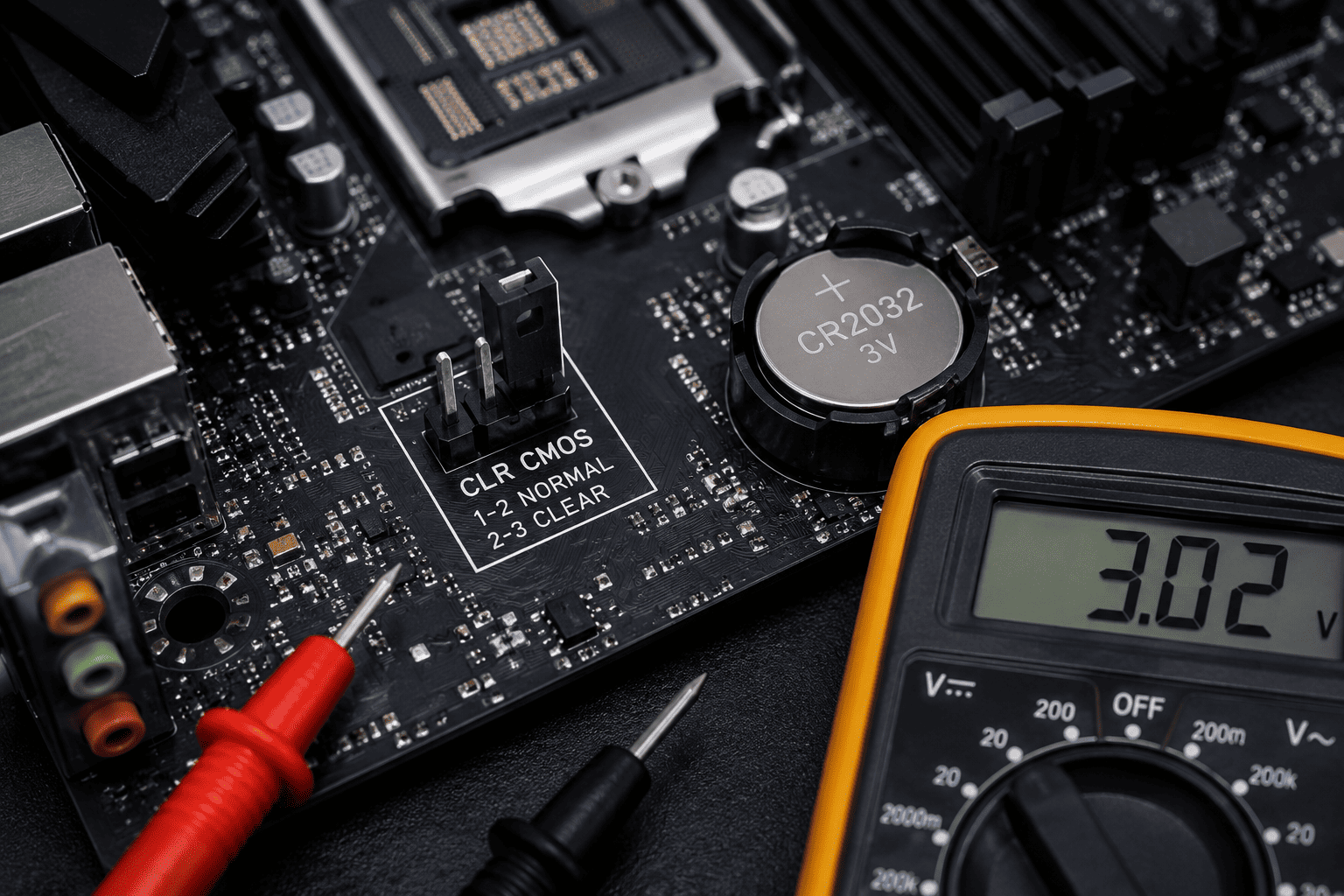
A BIOS reset can solve problems caused by incorrect BIOS settings, but sometimes resetting the settings doesn't fix the issue. If your desktop still won't boot, keeps losing BIOS settings, or shows the wrong date and time, the next things to check are the Clear CMOS jumper position, CMOS battery, and motherboard condition.
Problem
The customer has already reset the BIOS, but the desktop still has boot or BIOS-related problems.
The reset may not have worked correctly, or the CMOS battery may be too weak to retain settings.
What Problem Is the Customer Facing?
Customers may experience:
- PC still won't boot after BIOS reset
- BIOS settings keep reverting
- Date and time reset after shutdown
- BIOS shows default settings every time
- XMP/EXPO settings disappear
- Boot order keeps changing
- CMOS reset appears to have no effect
- PC repeatedly enters BIOS
- Motherboard settings are not retained
Root Causes of the Problem
1. Incorrect Clear CMOS Jumper Position
The jumper may be connected to the wrong pins or may not be returned to the normal operating position after the reset.
2. CMOS Battery Is Weak
A weak CR2032 battery may prevent the motherboard from retaining BIOS settings after the computer is powered off.
3. CMOS Reset Wasn't Performed Correctly
Different motherboards use different reset methods, such as a jumper, button, or battery removal procedure.
4. BIOS Settings Are Being Reset by Another Problem
Unstable RAM, failed overclocking, or motherboard issues can cause BIOS settings to revert automatically.
5. Motherboard Fault
If the jumper and battery are functioning correctly but settings still aren't retained, the motherboard's CMOS or related circuitry may require diagnosis.
How Can Customers Identify the Issue?
Look for:
- Date and time reset after every shutdown
- BIOS settings don't save
- Boot order keeps returning to default
- XMP/EXPO settings disappear
- BIOS repeatedly shows a reset warning
- CMOS reset doesn't change the problem
- PC starts normally only after entering BIOS
- BIOS settings are lost when AC power is disconnected
Possible Solutions
1. Check the Clear CMOS Jumper
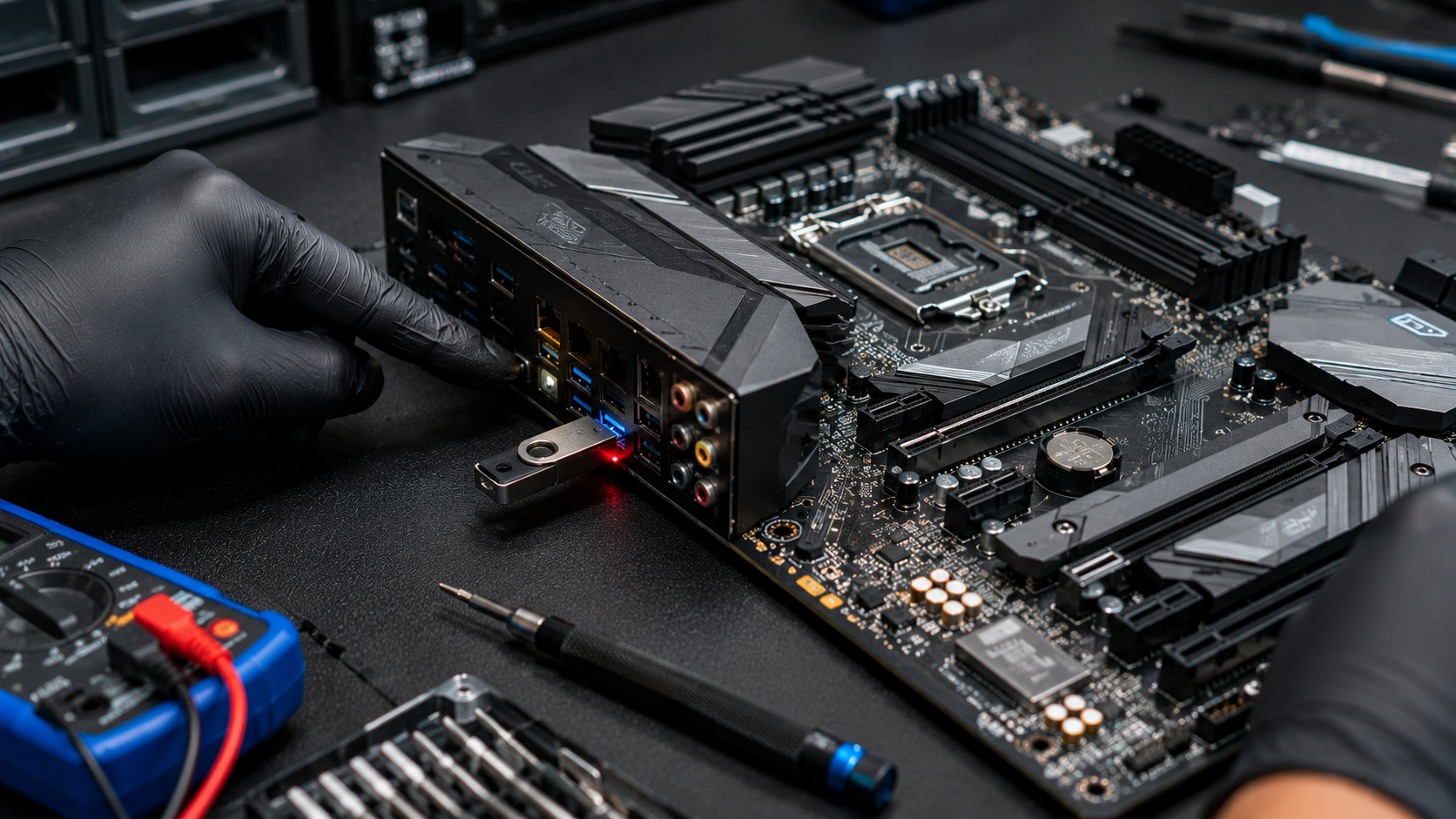
Locate the motherboard's CLR_CMOS, CLRTC, JBAT, or similar header.
Check the motherboard manual to confirm the correct pins and reset procedure.
Do not guess the jumper position, because motherboard layouts differ.
2. Return the Jumper to Its Normal Position
If a jumper was moved to perform the reset, make sure it is returned to its normal operating position before powering the PC back on.
A jumper accidentally left in the reset position can prevent normal operation.
3. Check the CMOS Battery
Many desktop motherboards use a CR2032 coin-cell battery.
If BIOS settings and the system clock repeatedly reset, replacing the battery may solve the problem.
Always follow the motherboard manufacturer's instructions when removing or replacing the battery.
4. Check Battery Voltage
A technician can measure the CMOS battery with a multimeter.
A fresh CR2032 is typically around 3V. A significantly reduced reading can indicate that replacement is appropriate, but the battery should be evaluated according to the manufacturer's specifications and under appropriate testing conditions.
5. Perform a Proper CMOS Reset
Before resetting CMOS:
- Shut down the PC.
- Disconnect AC power.
- Follow the motherboard manufacturer's CMOS reset procedure.
- Return the jumper to its normal position if applicable.
- Reconnect power.
- Enter BIOS.
- Load appropriate default settings.
- Save and restart.
Never move a CMOS jumper while the system is powered unless the motherboard manufacturer explicitly instructs you to do so.
6. Check BIOS After Reset
After restarting, check:
- Date and time
- Boot drive
- Boot mode
- RAM settings
- CPU settings
- Fan settings
- XMP/EXPO configuration
Save the required settings and restart again.
7. Check RAM and Other Hardware
If BIOS keeps resetting because of instability, check:
- RAM seating
- XMP/EXPO settings
- CPU overclock
- CPU temperatures
- PSU connections
- Motherboard diagnostic LEDs
A CMOS reset may remove the symptom temporarily without fixing the underlying hardware problem.
8. Update BIOS When Appropriate
If the motherboard has a known BIOS compatibility or stability issue, a manufacturer-approved BIOS update may help.
Use the correct BIOS file for the exact motherboard model and follow the manufacturer's update procedure.
9. Inspect the Motherboard
If the problem continues after checking the jumper and battery, inspect the board for:
- Damaged CMOS components
- Corrosion
- Physical damage
- Faulty jumper header
- Damaged battery socket
- Other motherboard faults
Why Choose Guru Computer Solution?
1. Certified Technicians
Our technicians can diagnose BIOS, CMOS, motherboard, and battery-related issues systematically.
2. Genuine Parts
We use suitable replacement batteries and compatible motherboard components.
3. Fast Turnaround
Basic CMOS and BIOS troubleshooting can often be completed quickly.
4. Warranty Support
Eligible repair and replacement services come with warranty support.
5. Affordable Pricing
We diagnose the actual problem before recommending motherboard replacement.