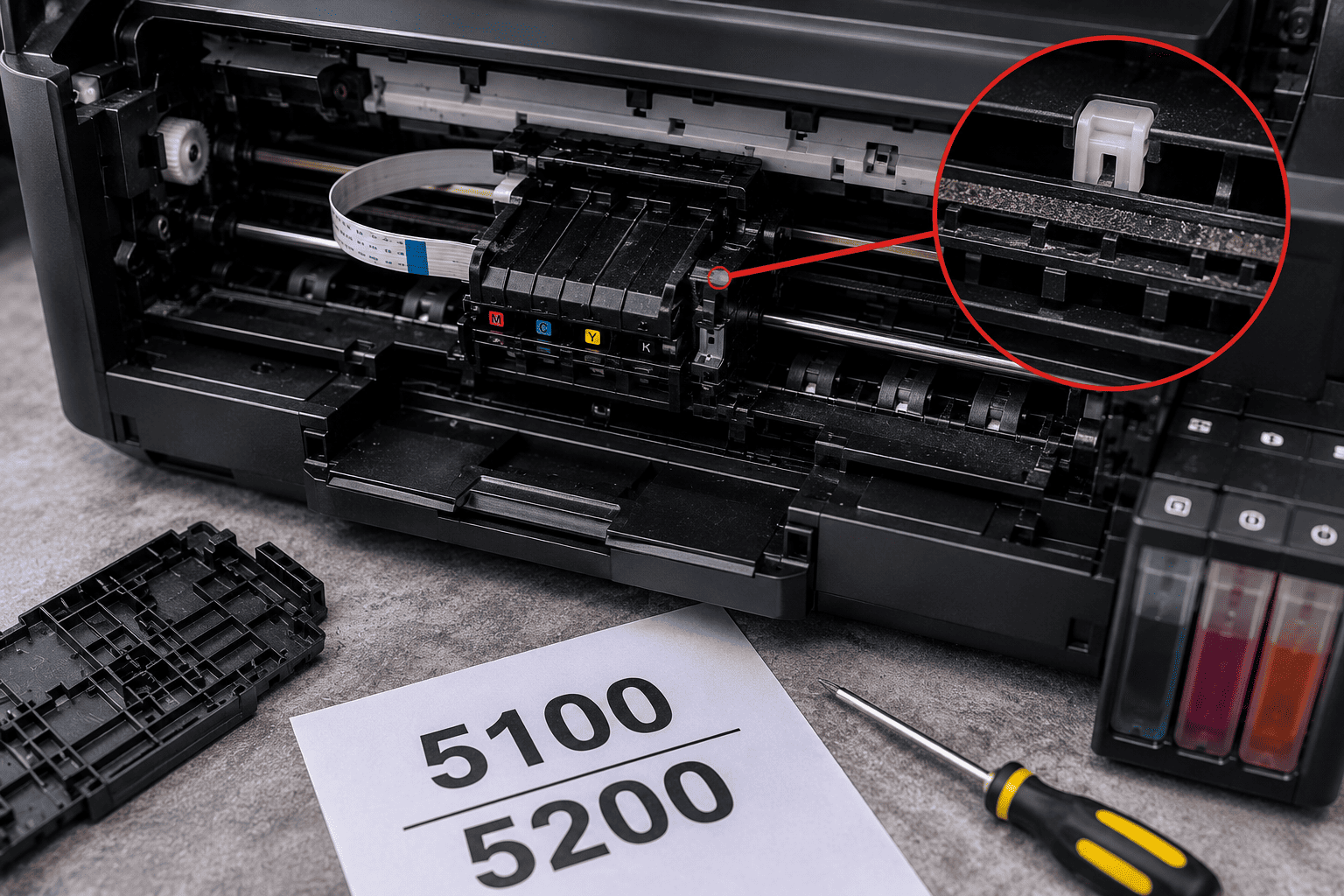
Canon printer support codes 5100 and 5200 can stop printing completely and may appear when the printer detects a hardware or mechanical problem. Support Code 5100 is commonly associated with an obstruction affecting the print-head or cartridge holder's movement, while Canon documents Support Code 5200 as a printer error on several models that may require a power reset or further service.
A 5100 error can sometimes be caused by jammed paper, foreign material, protective packaging, incorrectly installed ink cartridges, or a problem with the carriage movement or encoder system. The exact cause and troubleshooting steps can vary by Canon printer model.
Problem
The customer has a Canon inkjet printer that displays Support Code 5100 or 5200 and refuses to print.
With Code 5100, the print-head or cartridge holder may be unable to move correctly because of an obstruction or mechanical problem. Canon also warns that sensitive components such as the encoder film and white belt should not be touched or damaged during inspection.
Code 5200 is more model-dependent. On some Canon models, Canon's recommended first step is to power the printer off, unplug it, wait, reconnect power, and restart it. If the error remains, service may be required.
What Problem Is the Customer Facing?
Customers may experience:
- Canon printer displays Support Code 5100
- Canon printer displays Support Code 5200
- Cartridge carriage stops moving
- Print-head holder gets stuck
- Printer makes clicking or grinding sounds
- Printer refuses to start printing
- Printer stops after powering on
- Cartridge holder moves only partially
- Printer reports an error after a paper jam
- Printer shows the error after removing jammed paper
- Ink cartridges are installed but the printer still reports an error
- Printer worked normally before the carriage became stuck
- Error returns immediately after restarting the printer
Root Causes of the Problem
1. Paper or Foreign Material Blocking the Carriage
Small pieces of paper, labels, packaging material, or other objects can prevent the print-head holder from moving freely.
Canon specifically recommends checking for jammed paper and other material that may obstruct print-head holder movement when troubleshooting Code 5100.
2. Protective Packaging Still Inside the Printer
A printer that has recently been installed or transported may still have protective tape or packing material interfering with carriage movement.
This is particularly important when the error appears during initial setup.
3. Incorrectly Installed Ink Cartridges
Some Canon models instruct users to verify that ink tanks or FINE cartridges are properly installed when Code 5100 appears. A cartridge that is not seated correctly can interfere with normal operation.
4. Dirty Encoder Film
The printer uses an encoder film or strip to determine the position of the print-head or cartridge holder.
If this film becomes contaminated with ink, dust, or grease, the printer may have difficulty detecting carriage position and can generate a 5100 error.
5. Carriage or Holder Mechanical Problem
A worn carriage mechanism, damaged guide, belt, gear, or related component can prevent the print-head holder from moving correctly.
6. Carriage Drive System Problem
The motor and mechanical drive system responsible for moving the carriage can develop faults.
A clicking, grinding, or repeated mechanical noise can indicate that the carriage is struggling to move or that a gear mechanism is not operating correctly.
7. Ink or Debris Around the Carriage Path
Ink buildup or accumulated debris around the carriage path can interfere with smooth movement.
8. General Printer Hardware Error
Support Code 5200 should not automatically be treated as a carriage jam. Canon's documentation for some models describes 5200 simply as a printer error and recommends a power reset followed by service if the error persists.
How Can Customers Identify the Issue?
Look for:
- Support Code 5100 appears during startup
- Print-head or cartridge holder cannot move normally
- Carriage stops at one side of the printer
- Printer makes unusual clicking or grinding sounds
- Error started after a paper jam
- Error appeared after transporting or installing the printer
- Small pieces of paper are visible inside
- Ink cartridge is not seated correctly
- Encoder film appears contaminated
- Printer repeatedly attempts to move the carriage
- Support Code 5200 remains after a power reset
- Printer cannot complete its startup sequence
Possible Solutions
1. Turn Off and Unplug the Printer
Before inspecting a carriage problem:
- Cancel the print job
- Turn off the printer
- Disconnect the power cable
- Allow the printer to stop completely
Canon recommends turning the printer off before checking for obstructions related to Code 5100.
2. Check for Jammed Paper
Open the appropriate printer covers and carefully inspect the carriage path.
Look for:
- Torn paper
- Labels
- Small paper fragments
- Foreign objects
- Packing materials
Remove any obstruction carefully.
3. Check the Carriage Movement
With the printer powered off, a technician can inspect whether the cartridge or print-head holder is physically obstructed.
Do not force the carriage against resistance because this can damage the belt, gears, guide mechanism, or other components.
4. Check the Ink Cartridges
Remove and reinstall the appropriate cartridges according to the printer's instructions.
Confirm that each cartridge is properly seated and locked.
Canon specifically recommends checking cartridge installation for Code 5100 on several models.
5. Inspect the Encoder Film
Check the transparent encoder film behind or near the carriage for visible contamination.
If cleaning is required, follow the manufacturer's model-specific procedure carefully.
Do not scratch, bend, or aggressively wipe the encoder film. Canon warns that touching or damaging sensitive components can cause printing problems.
6. Check the Carriage Belt and Guide Mechanism
A technician can inspect:
- Carriage belt
- Guide rail
- Drive gears
- Carriage motor
- Mechanical obstruction
- Abnormal wear
A loose or damaged belt can prevent the carriage from reaching its correct position.
7. Check for Mechanical Noise
Listen for:
- Repeated clicking
- Grinding
- Motor noise without carriage movement
- Carriage striking an obstruction
- Repeated startup attempts
Unusual mechanical sounds can provide useful clues about the carriage drive system.
8. Perform a Power Reset for Code 5200
For models where Canon recommends this procedure:
- Turn off the printer
- Unplug the power cable
- Wait for a period recommended by the manufacturer
- Reconnect the printer
- Turn it back on
- Check whether the error remains
Canon's instructions for some models specifically recommend disconnecting power and restarting the printer for Code 5200.
9. Check the Exact Printer Model
Support codes can behave differently across Canon printer families.
Before replacing parts or attempting advanced troubleshooting, identify the exact:
- Printer model
- Series
- Support code
- Cartridge system
- Error behavior
This helps prevent using the wrong repair procedure.
10. Inspect the Carriage and Control System
If Code 5100 continues after removing obstructions and checking cartridges, a technician may need to diagnose:
- Carriage motor
- Encoder system
- Belt
- Gears
- Print-head holder
- Sensor system
- Wiring
- Main control board
11. Avoid Forcing the Carriage
Never force a stuck carriage aggressively.
Also avoid touching delicate internal components unnecessarily. Canon specifically warns users to avoid touching the clear encoder film and white belt when clearing an obstruction.
12. Service the Printer if the Error Persists
If the printer continues showing 5100 or 5200 after basic checks, professional diagnosis may be necessary.
Canon itself recommends contacting service when the relevant troubleshooting steps do not resolve these errors.
Why Choose Guru Computer Solution?
1. Experienced Printer Technicians
Our technicians can diagnose Canon carriage, print-head holder, encoder, cartridge, and mechanical printer problems systematically.
2. Proper Error Code Diagnosis
We identify whether the problem is actually related to carriage movement, an encoder issue, cartridge installation, or another hardware fault before replacing components.
3. Careful Carriage Repair
Printer carriage mechanisms contain delicate belts, sensors, encoder films, and gears. Our technicians handle these components carefully during inspection and repair.
4. Genuine and Compatible Parts
If a carriage, belt, sensor, motor, or other component requires replacement, we use suitable parts compatible with the exact printer model.
5. Fast Troubleshooting
Common 5100-related obstructions and installation issues can often be identified quickly, while more complex mechanical faults receive deeper diagnosis.
6. Affordable Repair
We diagnose the actual cause of the support code before recommending expensive component replacement or a new printer.