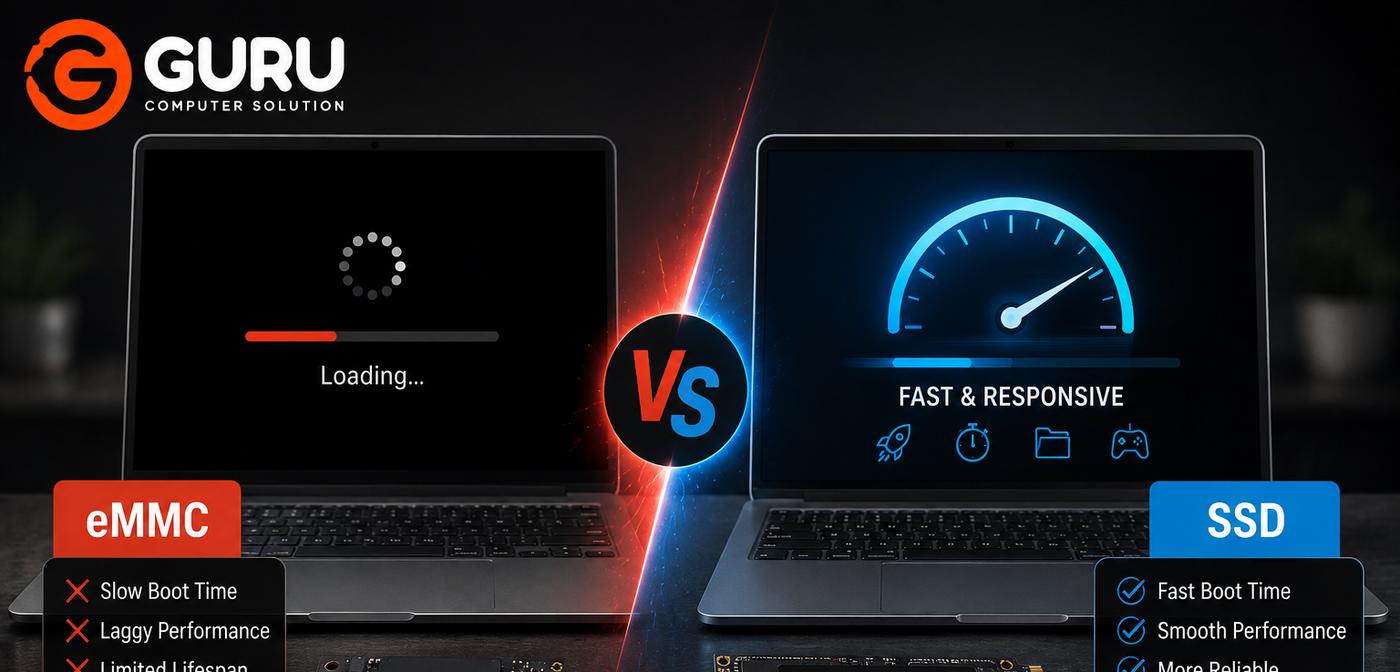
You buy a new laptop, turn it on, and expect it to feel fast. But instead, Windows takes forever to start, applications take several seconds to open, File Explorer freezes, and the laptop feels slow even when you're doing basic tasks.
The frustrating part is that the laptop may have a relatively modern processor and enough RAM on paper.
The hidden problem could be eMMC storage.
Many entry-level laptops are sold with eMMC storage because it is compact and inexpensive. For basic tasks, it can work, but it generally doesn't provide the same performance or upgrade flexibility as a proper SSD.
If your budget laptop feels painfully slow, understanding the difference between eMMC and SSD can help you determine whether the laptop can be improved or whether replacing it makes more sense.
What Is eMMC Storage in a Laptop?
eMMC stands for embedded MultiMediaCard.
It is a type of flash storage commonly found in lower-cost laptops, tablets, and other compact devices.
Unlike a typical removable storage drive, eMMC storage is usually integrated directly onto the device's motherboard.
Manufacturers use eMMC because it can help keep laptops:
- Thin
- Compact
- Affordable
- Energy efficient
This makes eMMC attractive for entry-level laptops designed for basic activities such as web browsing, document editing, online classes, and media consumption.
The problem appears when users expect these machines to perform like laptops equipped with modern SSDs.
eMMC storage can become a significant performance limitation, especially when Windows and multiple applications are constantly reading and writing data.
What Is an SSD and Why Is It Faster Than eMMC?
An SSD (Solid State Drive) also uses flash memory, but laptop SSDs are generally designed as higher-performance storage devices.
Common laptop SSD types include:
- SATA SSD
- M.2 SATA SSD
- NVMe SSD
NVMe SSDs communicate through PCIe and can offer substantially higher performance than SATA-based storage.
An SSD can improve several everyday tasks, including:
- Windows startup
- Application loading
- File transfers
- Software installation
- General system responsiveness
However, the exact performance depends on the SSD type, interface, laptop hardware, and workload.
The important point is that not all flash storage is equal.
An eMMC chip and a modern NVMe SSD may both use flash memory, but they are designed very differently.
eMMC vs SSD: What Is the Real Difference?
The main difference between eMMC and SSD storage comes down to performance, design, and upgradeability. eMMC is commonly found in budget laptops and is usually soldered directly onto the motherboard, which makes it difficult or impossible to upgrade. It generally offers lower storage performance and can struggle with heavy workloads, large file operations, and demanding Windows tasks. SSDs, including SATA and NVMe models, are designed for higher performance and are commonly available in a wider range of capacities. An SSD can provide faster boot times, quicker application loading, and a more responsive Windows experience. While eMMC can be perfectly adequate for basic browsing, documents, and light everyday use, an SSD is usually the better choice for users who want faster performance, multitasking, and greater upgrade flexibility.
Why Does a New Laptop With eMMC Feel So Slow?
One of the biggest misconceptions is:
“It's a new laptop, so it must be fast.”
Unfortunately, age is not the only factor determining performance.
A new laptop with an entry-level processor, limited RAM, and slow eMMC storage can feel much slower than an older laptop equipped with a decent SSD.
Windows constantly accesses storage for:
- System files
- Temporary files
- Updates
- Applications
- Virtual memory
- Background services
- Search indexing
- Browser data
When storage becomes the bottleneck, the entire system can feel sluggish.
You may notice:
- Slow boot times
- Applications taking a long time to open
- File Explorer freezing
- Windows updates taking a long time
- Slow application installation
- Delayed response after clicking
- Disk usage reaching 100%
This can make the laptop feel as though the processor is the problem when the storage is actually limiting the system.
How eMMC Affects Windows Performance
Windows is constantly performing background storage operations.
Even when you're not actively opening a file, the operating system may be:
- Installing updates
- Scanning files
- Loading services
- Updating applications
- Managing temporary data
- Writing logs
- Using virtual memory
On a system with fast storage, many of these operations can happen without being particularly noticeable.
On a low-performance eMMC system, the same activity can cause noticeable delays.
This becomes even more frustrating when the laptop has limited RAM.
When available RAM becomes low, Windows may rely more heavily on storage for memory management.
If that storage is relatively slow eMMC, the laptop can become even less responsive.
How to Check Whether Your Laptop Uses eMMC or SSD
Before spending money on an upgrade, find out what storage your laptop actually has.
On Windows, you can check through Task Manager.
Press:
Ctrl + Shift + Esc
Then:
Performance → Disk
Windows may show information about the installed storage device.
You can also check:
Settings → System → Storage
For more detailed hardware information, tools such as Device Manager or dedicated hardware-information utilities can identify the storage device model.
The exact method may vary depending on the Windows version.
If you discover that your laptop uses eMMC storage, don't immediately assume the laptop is beyond saving.
The next step is determining whether the storage is replaceable or whether another upgrade path is available.
Can You Upgrade a Laptop With Soldered eMMC Storage?
This is where things become complicated.
In many laptops, eMMC storage is soldered directly onto the motherboard.
That means you usually cannot simply open the laptop, remove the eMMC chip, and install a standard 2.5-inch SSD.
Replacing soldered eMMC can require specialized board-level work and may not be practical or economical.
Some laptops may also have an unused M.2 slot or another storage interface that allows an SSD to be installed.
Therefore, the laptop model and motherboard need to be checked before purchasing an SSD.
Do not buy an NVMe SSD assuming every laptop supports it.
The laptop must have compatible hardware.
What Can You Do If the eMMC Cannot Be Replaced?
If the eMMC is soldered and there is no compatible internal SSD slot, you still have several options.
1. Optimize Windows
Reducing unnecessary startup applications and background processes can improve the overall experience.
2. Check the RAM
If the laptop has limited RAM, increasing RAM may help—provided the laptop supports an upgrade.
3. Use an External SSD
An external SSD can provide significantly faster external storage than relying on slow removable flash storage.
4. Use Cloud or External Storage for Large Files
Moving large media libraries and unnecessary files away from the internal storage can help maintain available space.
5. Consider a Different Laptop
If the hardware is severely limited, investing further in upgrades may not make financial sense.
Can an External SSD Make an eMMC Laptop Faster?
An external SSD can be a useful solution, but there is an important distinction.
Simply connecting an external SSD does not automatically make Windows run from the SSD.
If Windows remains installed on the internal eMMC, the operating system will continue using that storage for its normal operations.
However, an external SSD can provide much faster storage for:
- Large files
- Photos
- Videos
- Projects
- Games
- Backups
- Applications where supported
In some situations, an external SSD can also be used for an alternative operating-system setup, but boot support depends on the laptop firmware, operating system, USB interface, and configuration.
Therefore, an external SSD is a useful workaround, but it isn't always equivalent to replacing the laptop's internal system drive.
RAM Upgrade and Windows Optimization for eMMC Laptops
Storage isn't the only thing that determines laptop performance.
RAM also matters.
If your laptop has limited memory, Windows may need to use storage as part of its memory-management process.
With slow eMMC storage, this can make multitasking feel particularly frustrating.
If your laptop supports a RAM upgrade, increasing memory can help with:
- Web browsing
- Office applications
- Multitasking
- Video conferencing
- General Windows responsiveness
However, RAM cannot turn eMMC into an SSD.
If the main bottleneck is slow internal storage, RAM optimization alone may not solve the problem.
The best upgrade depends on the actual hardware configuration.
eMMC vs SSD: Which Storage Should You Choose When Buying a Laptop?
If you're buying a new laptop, storage should be one of the specifications you check carefully.
For most Windows laptops, an SSD is the preferable choice.
When comparing two laptops, don't look only at:
Processor + RAM
Also check:
Storage type + storage interface + capacity
For example, a laptop with:
Core i5 + 8GB RAM + eMMC
may provide a noticeably different experience from:
Core i5 + 8GB RAM + NVMe SSD
even though the processor and RAM specifications look similar.
For a new laptop purchase, an SSD generally provides a better foundation for everyday responsiveness.
Why Some Cheap New Laptops Are Not Actually a Good Deal
A low purchase price can be attractive.
But specifications matter.
Some entry-level laptops reduce cost by using combinations such as:
- Lower-end processors
- Limited RAM
- Small eMMC storage
- Basic displays
- Limited upgrade options
The laptop may be perfectly suitable for its intended market.
The problem happens when customers purchase such machines expecting them to handle demanding workloads.
Before buying a cheap laptop, ask:
What type of storage does it use?
Can the RAM be upgraded?
Can the internal storage be upgraded?
Does it have an M.2 slot?
How much storage is actually available after Windows installation?
These questions can prevent an inexpensive purchase from becoming an expensive disappointment.
When Should You Replace an eMMC Laptop Instead of Upgrading It?
Not every slow laptop should be upgraded.
If the laptop has:
- Soldered eMMC
- Very limited RAM
- An older processor
- No internal SSD slot
- A small battery
- Other hardware limitations
then spending a significant amount on upgrades may not make sense.
In such cases, purchasing a laptop with an SSD and better upgrade options may provide much better long-term value.
On the other hand, if the laptop has a compatible M.2 slot or expandable RAM, an upgrade could extend its useful life considerably.
The decision should be based on the complete hardware configuration rather than storage alone.
Why Choose Guru Computer Solution for Laptop Upgrades in Kathmandu?
Before upgrading a slow laptop, it is important to identify what is actually causing the performance problem.
Guru Computer Solution can inspect the laptop's hardware configuration and determine whether the system uses:
- eMMC
- SATA SSD
- M.2 SATA SSD
- NVMe SSD
- Upgradeable RAM
Depending on the laptop model, available upgrade options may include SSD installation, RAM upgrades, system optimization, or external-storage solutions.
Instead of purchasing parts blindly, a hardware assessment can help you choose an upgrade that is actually compatible with your laptop.
Stop Blaming Windows: Check Your Storage First
When a new laptop feels painfully slow, Windows is often the first thing users blame.
Sometimes Windows optimization can help.
But if the laptop is built around slow eMMC storage and limited RAM, software tweaks can only go so far.
Before performing a factory reset or reinstalling Windows repeatedly, check the hardware.
Find out:
What storage does the laptop use?
How much RAM does it have?
Is the storage upgradeable?
Does it have an M.2 slot?
Would an external SSD make sense?
Once you know the actual limitation, you can make a much smarter upgrade decision.
Frequently Asked Questions
Is eMMC the Same as an SSD?
No. Both use flash memory, but eMMC and SSDs are different storage technologies. eMMC is commonly integrated directly onto the motherboard in budget devices, while SSDs are generally designed for higher performance and often offer better upgradeability.
Why Is My New Laptop So Slow?
A new laptop can still feel slow if it uses low-performance eMMC storage, limited RAM, or an entry-level processor. Storage can be a major bottleneck when Windows is performing frequent read and write operations.
Can I Replace eMMC With an Internal SSD?
It depends on the laptop. Since eMMC is often soldered to the motherboard, it usually cannot be replaced like a conventional SSD. However, some laptops may have a separate M.2 or SATA storage slot.
Can I Install Windows on an External SSD?
Some laptops can boot an operating system from an external SSD, but compatibility depends on the laptop's firmware, USB interface, operating system, and configuration. It should be checked before using an external SSD as the primary Windows drive.
Will More RAM Make an eMMC Laptop Faster?
More RAM can improve multitasking and reduce situations where Windows relies heavily on storage for memory management. However, additional RAM does not make the eMMC itself faster.
Is an External SSD Better Than eMMC?
For external file storage and many data-transfer tasks, a proper external SSD can be substantially faster than typical eMMC storage. However, if Windows remains installed on the eMMC, the operating system will still be limited by the internal storage.
How Can I Check If My Laptop Has eMMC?
You can check Task Manager → Performance → Disk in Windows, or inspect the storage device model through Windows hardware information. The exact identification method can vary by system.
Can an eMMC Laptop Be Upgraded to NVMe SSD?
Only if the laptop has compatible NVMe hardware, such as an M.2 PCIe slot. A soldered eMMC chip does not automatically mean an NVMe SSD can be installed.
Is eMMC Good Enough for Basic Laptop Use?
Yes. eMMC can be adequate for basic tasks such as web browsing, document editing, online classes, and media consumption. The problem is that it generally provides less performance and upgrade flexibility than a proper SSD.
Should I Buy a Laptop With eMMC in Nepal?
If you're buying a Windows laptop for long-term use, an SSD is generally preferable. Before buying an inexpensive laptop, check the storage type, RAM, processor, and upgrade options rather than judging the machine only by its price.
How Much Does an SSD Upgrade Cost in Kathmandu?
The cost depends on the SSD capacity, interface, laptop compatibility, and installation requirements. An inspection can determine whether your laptop supports a SATA or NVMe SSD before you purchase one.
Can Guru Computer Solution Upgrade My Laptop?
If your laptop supports an SSD or RAM upgrade, a technician can check the hardware and determine the compatible upgrade options. For eMMC-based laptops, the available solutions depend heavily on the specific motherboard design.
What Should I Upgrade First: RAM or Storage?
It depends on the bottleneck. If the laptop has very limited RAM, a RAM upgrade may help multitasking. If the laptop uses a slow storage device and supports an SSD upgrade, replacing or adding faster storage can make a significant difference to overall responsiveness.
When Should I Replace My eMMC Laptop?
Consider replacement when the laptop has soldered eMMC, limited RAM, no internal SSD upgrade path, an older processor, and multiple other hardware limitations. If the system supports an SSD or RAM upgrade, upgrading may be more economical.
How Can I Make My eMMC Laptop Usable Again?
Start by checking RAM usage, available storage space, startup applications, Windows background processes, and the health of the eMMC storage. If the laptop has an upgradeable RAM slot or compatible SSD interface, those options should be evaluated before replacing the machine.