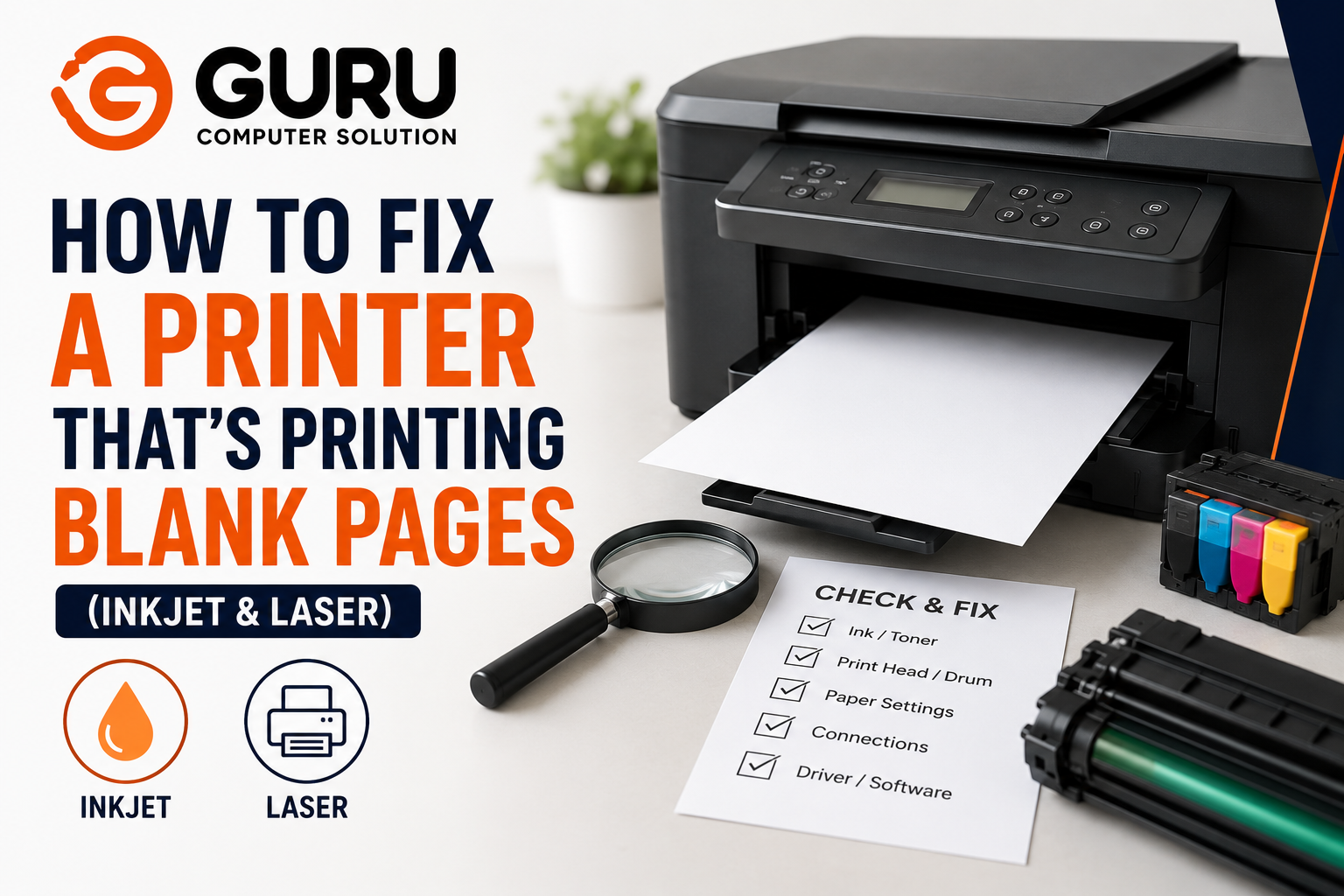
The printer hums, paper feeds through normally, and out comes a completely blank sheet. No error message, no warning, nothing that tells you what actually went wrong. This is one of the more confusing printer problems precisely because the printer behaves as if everything is working, while producing nothing at all. The good news is that blank pages have a fairly small set of real causes, and the fix depends heavily on whether you're working with an inkjet or a laser printer.
Step One: Figure Out Whether This Is a Hardware or Software Problem
Before touching cartridges or drivers, run this one diagnostic first, since it determines which set of fixes below actually applies to your situation.
Print a test page directly from the printer itself, not from your computer. Most printers let you trigger this by holding the Cancel or Resume button for a few seconds while idle, or through the printer's own menu under something like Settings, Reports, or Printer Status.
If the test page is also blank, the problem is on the printer's side, cartridges, seals, printhead, or the toner and drum path, and you should follow the hardware troubleshooting steps for your printer type below.
If the test page prints correctly but documents from your computer come out blank, the printer hardware is fine and the issue is software or driver related, a completely different fix covered near the end of this guide.
Skipping this step is the most common reason people waste ink running repeated cleaning cycles or replace cartridges that were never the actual problem.
Fixing Blank Pages on an Inkjet Printer
Inkjet blank pages almost always trace back to a break somewhere in the ink delivery chain, ink not reaching the paper through the nozzles.
1. Check for Leftover Protective Tape or Seals
On a new or recently replaced cartridge, a thin strip of tape or plastic seal covering the print nozzles is an extremely common and easy to miss cause. Remove each cartridge and inspect every surface under good lighting, checking the bottom, sides, and contact points, not just the top.
2. Verify Actual Ink Levels, Not Just the On Screen Indicator
Ink level indicators are estimates based on page count, not a direct fluid measurement, and can show ink remaining when a cartridge is genuinely empty. If levels appear low or uncertain, the simplest next step is trying a fresh cartridge to rule this out directly.
3. Run the Built In Printhead Cleaning Cycle
Clogged nozzles are the next most common cause, particularly after a period of not printing, since ink dries inside the nozzles when the printer sits unused. Run the cleaning cycle through the printer's control panel or the manufacturer's software (such as HP Smart or the equivalent for your brand). Some printers, particularly Epson and Canon models with finer nozzles, may need two to three cleaning cycles rather than just one.
4. Try an Overnight Soak for Severely Dried Ink
If cleaning cycles alone don't resolve it, particularly after extended non use, placing a damp paper towel where the printhead rests and leaving it for several hours to overnight can help rehydrate dried ink before running another cleaning cycle. If this still doesn't restore output, the cartridge is likely permanently dried out and needs replacement regardless of what the ink level indicator shows.
5. Check for Air Bubbles in the Ink System
Less common but worth knowing about: air bubbles trapped in the ink delivery path can block flow even with a full cartridge and clean nozzles. This typically resolves itself through repeated cleaning cycles, but persistent cases may need a technician's attention.
Fixing Blank Pages on a Laser Printer
Laser printers work through an entirely different mechanism, heat and static electricity fusing toner powder onto paper, so their blank page causes and fixes are genuinely different from an inkjet's.
1. Confirm the Sealing Strip Is Fully Removed
On a new toner cartridge, a full width sealing strip (often orange or yellow) must be pulled completely out before the cartridge will release toner. This is an extremely common cause specifically on newly installed cartridges.
2. Shake the Toner Cartridge
Remove the cartridge and gently rock it side to side to redistribute settled toner. This alone can restore output and, on a cartridge nearing the end of its life, can even extend it by a meaningful number of additional pages.
3. Check Whether the Cartridge Is Actually Producing Toner
Hold a sheet of white paper under the cartridge and roll the drum by hand. If toner appears on the paper, the cartridge still has supply. If nothing appears, the cartridge is either empty or the drum itself has failed.
4. Inspect the Drum Unit
A worn drum unit can no longer hold the electrostatic charge needed to attract and transfer toner onto paper, which produces blank pages even with toner still present in the cartridge. Check for visible scratches or dark banding on the drum surface, and compare your total page count against the drum's rated life, commonly somewhere in the range of 10,000 to 30,000 pages depending on the model.
5. Clean the Transfer Corona Wire
A dirty high voltage transfer corona wire can prevent toner from properly transferring to the paper even when everything else is functioning. Most laser printers include a small cleaning tab or slider specifically for this, usually a green tab, that runs along the wire when moved back and forth.
If the Test Page Printed Fine But Your Documents Don't
This points to a software or driver issue rather than a hardware fault, and the fixes are different:
Update or reinstall the printer driver from the manufacturer's official website, rather than relying on a generic or outdated driver, which resolves a large share of software related blank page issues.
Clear the print spooler, which can hold a corrupted job that keeps producing blank output. On Windows, this involves stopping the Print Spooler service, clearing the spooler folder, and restarting the service.
Check your print settings for the specific document. Confirm "Print in Black and White" isn't enabled while your black cartridge is empty, and for certain PDFs, confirm background printing is enabled if the content relies on it.
Confirm the source document isn't actually blank, particularly if the issue is isolated to one specific file rather than every print job.
When Blank Pages Mean a Genuine Hardware Failure
If you've worked through the relevant steps above and the printer, confirmed by its own test page, is still producing blank output, this usually points to a deeper hardware failure, a dead printhead on an inkjet, or a fuser problem on a laser printer. At this point, it's worth an honest repair versus replace comparison rather than continuing to guess, particularly for older or budget tier printers where repair cost can approach or exceed what a replacement would cost.
Why Choose Guru Computer Solution
Proper Diagnosis Before Any Fix We isolate whether the issue is hardware or software before recommending a repair, avoiding unnecessary part replacement or wasted troubleshooting time.
Both Inkjet and Laser Printer Expertise From printhead and ink delivery issues to drum units, fusers, and transfer components, we service the full range of printer types and failure points.
Honest Repair or Replace Guidance If your printer's blank page issue points to a hardware failure that isn't economical to repair, we'll tell you directly rather than running up a repair bill on an aging unit.
Genuine Parts and Consumables Where repair is the right call, we use quality components suited to your printer's actual specifications and duty cycle.
Conclusion
A printer printing blank pages is almost always fixable, and the fix depends entirely on getting the diagnosis right first. Running a test page directly from the printer tells you immediately whether you're dealing with a hardware issue, ink or toner delivery, a worn drum, a dirty corona wire, or a software and driver problem that has nothing to do with the printer's internal components at all. Working through the right set of steps for your specific printer type, in order, resolves the large majority of blank page problems without needing a technician at all, and the rest usually point clearly toward a specific, targeted repair rather than a mystery.
If your printer is still producing blank pages after trying these steps, contact Guru Computer Solution for a proper diagnosis and repair.