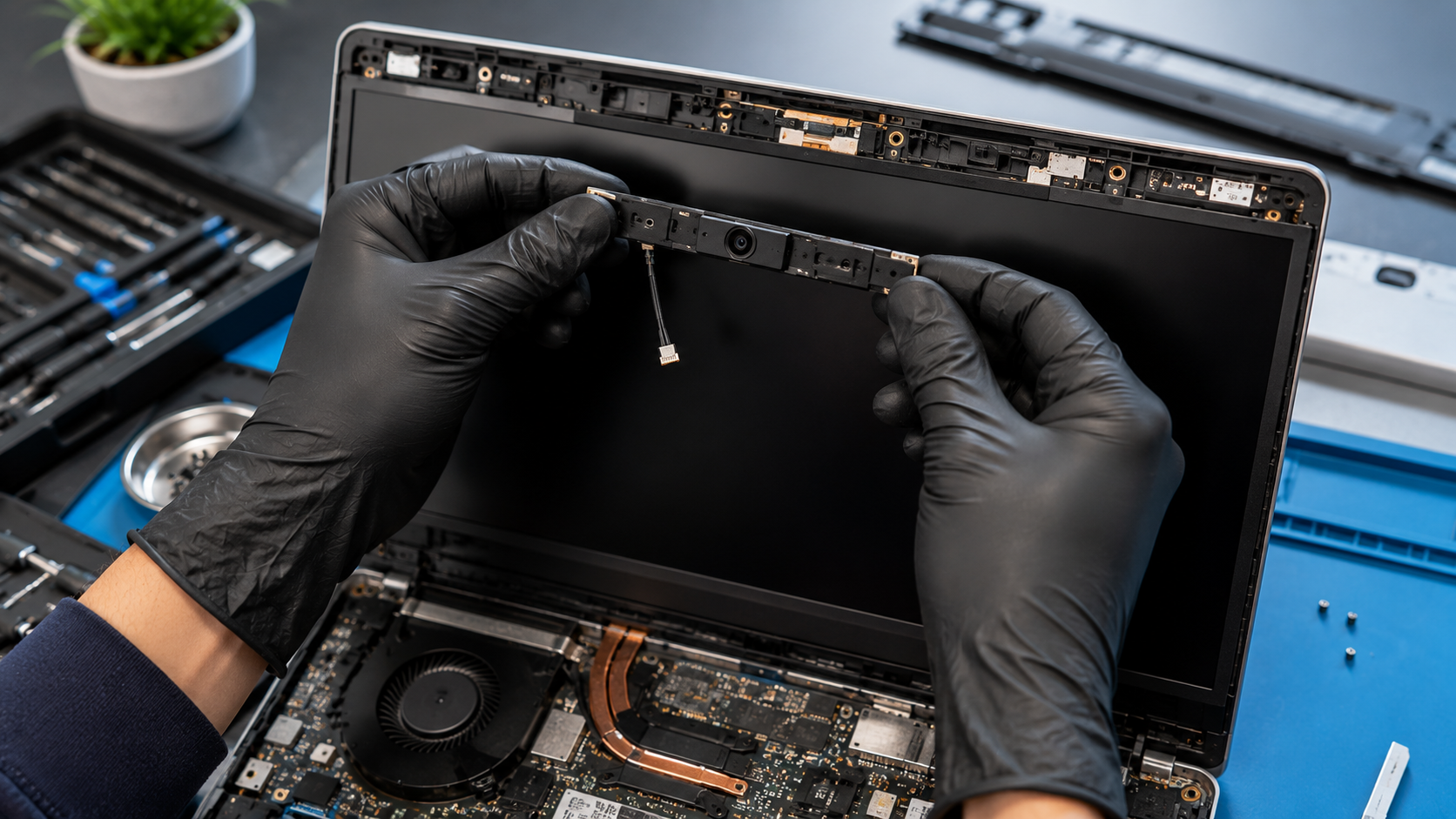
In today's remote-work and online-learning world, a functioning webcam and microphone are essential for video calls, virtual meetings, online classes, and content creation. When these components stop working, users often assume the problem is software-related, but hardware failures are more common than many realize. A damaged webcam module, faulty microphone, loose ribbon cable, or worn display-hinge connection can all prevent your laptop from capturing video or audio properly.
Replacing a laptop webcam and microphone module may sound complicated, but understanding how these components are integrated into the display assembly can help identify the root cause of the issue. In this article, we'll explore why webcam and microphone modules fail, the symptoms to watch for, common replacement challenges, and the best solutions for restoring clear video and audio performance.
Webcam or Microphone Not Working on Your Laptop?
A failed webcam or microphone can disrupt video meetings, online classes, content creation, and remote work. While software settings and drivers are often the first suspects, the issue may actually be a faulty webcam and microphone module, damaged cable, or loose internal connection. Understanding how these components work and when replacement is necessary can save time and restore full functionality to your laptop.
Why Does It Happen?
1. Physical Wear and Tear
Repeated opening and closing of the laptop lid can stress the webcam cable that runs through the display hinges.
2. Liquid Damage
Moisture exposure can corrode the webcam module, microphone circuitry, or connector.
3. Cable Damage
The thin ribbon cable connecting the webcam to the motherboard can become pinched or damaged.
4. Hardware Failure
Over time, the webcam sensor or microphone components may fail due to age or manufacturing defects.
5. Previous Repair Damage
Improper screen replacements or display repairs can accidentally disconnect or damage the webcam assembly.
6. Dust and Debris
Accumulated dust inside the display bezel may affect microphone performance or connector reliability.
How Can Customers Identify the Issue?
Common signs include:
- Webcam not detected by Windows
- Black camera screen during video calls
- Blurry or distorted webcam image
- Microphone not recording audio
- Intermittent camera operation
- Device Manager showing camera errors
- Video conferencing apps unable to access the camera
- Audio sounds muffled or completely absent
Understanding the Webcam and Microphone Module
Most modern laptops integrate the webcam and microphones into a single module mounted inside the top display bezel.
The assembly typically includes:
- Webcam sensor
- Dual-array microphones
- Flexible ribbon cable
- Mounting brackets
- Connector interface
This module connects directly to the motherboard through a thin cable routed through the display hinges.
Common Replacement Challenges
Delicate Display Bezel
Removing the bezel requires patience, as excessive force can crack clips or damage the display panel.
Hidden Screws
Some manufacturers place screws beneath rubber covers or adhesive strips.
Fragile Ribbon Cables
Webcam cables are extremely thin and can tear if pulled incorrectly.
Compatibility Issues
Different laptop models often use unique webcam modules, even within the same product family.
Hinge Routing
Proper cable routing through the hinges is essential to prevent future cable damage.
Solutions
Verify Software First
Before replacing hardware:
- Check camera privacy settings
- Reinstall webcam drivers
- Test in multiple applications
- Update Windows and BIOS
Inspect Internal Connections
A loose webcam connector may be the only issue and can often be reseated without replacing the module.
Replace the Webcam Module
If diagnostics confirm hardware failure, replacing the webcam assembly is typically the most effective solution.
Replace Damaged Cables
In some cases, the cable fails while the camera itself remains functional.
Professional Repair
Display assemblies contain fragile components that can be easily damaged during disassembly. Professional service minimizes risk and ensures proper installation.
Why Choose Guru Computer Solution?
1.Certified Technicians
Experienced professionals skilled in laptop diagnostics and component-level repairs.
2.Genuine Parts
High-quality replacement webcam and microphone modules.
3.Fast Turnaround
Efficient repairs to get you back online quickly.
4.Warranty Support
Repairs backed by service warranty.
5.Affordable Pricing
Reliable solutions without unnecessary replacement costs.
Contact Guru Computer Solution Today
If your laptop's webcam or microphone is not working properly, don't let poor video or audio disrupt your work, online classes, or virtual meetings. Visit Guru Computer Solution for professional diagnostics, expert webcam and microphone module replacement, genuine parts, and fast, reliable repair service in Kathmandu.