A printer that suddenly refuses to print, disappears from Wi-Fi, shows incorrect settings, gets stuck in an error state, or behaves differently after a configuration change can be frustrating. Sometimes the problem is caused by a corrupted configuration rather than a damaged printer.
In these situations, restoring the printer to its factory settings can be an effective troubleshooting step.
But there is an important distinction: turning a printer off and on is not the same as performing a factory reset. A network reset is also different from a complete factory reset. Depending on the printer model, you may need to reset only the Wi-Fi settings, restore specific settings, or return the entire device to its original configuration.
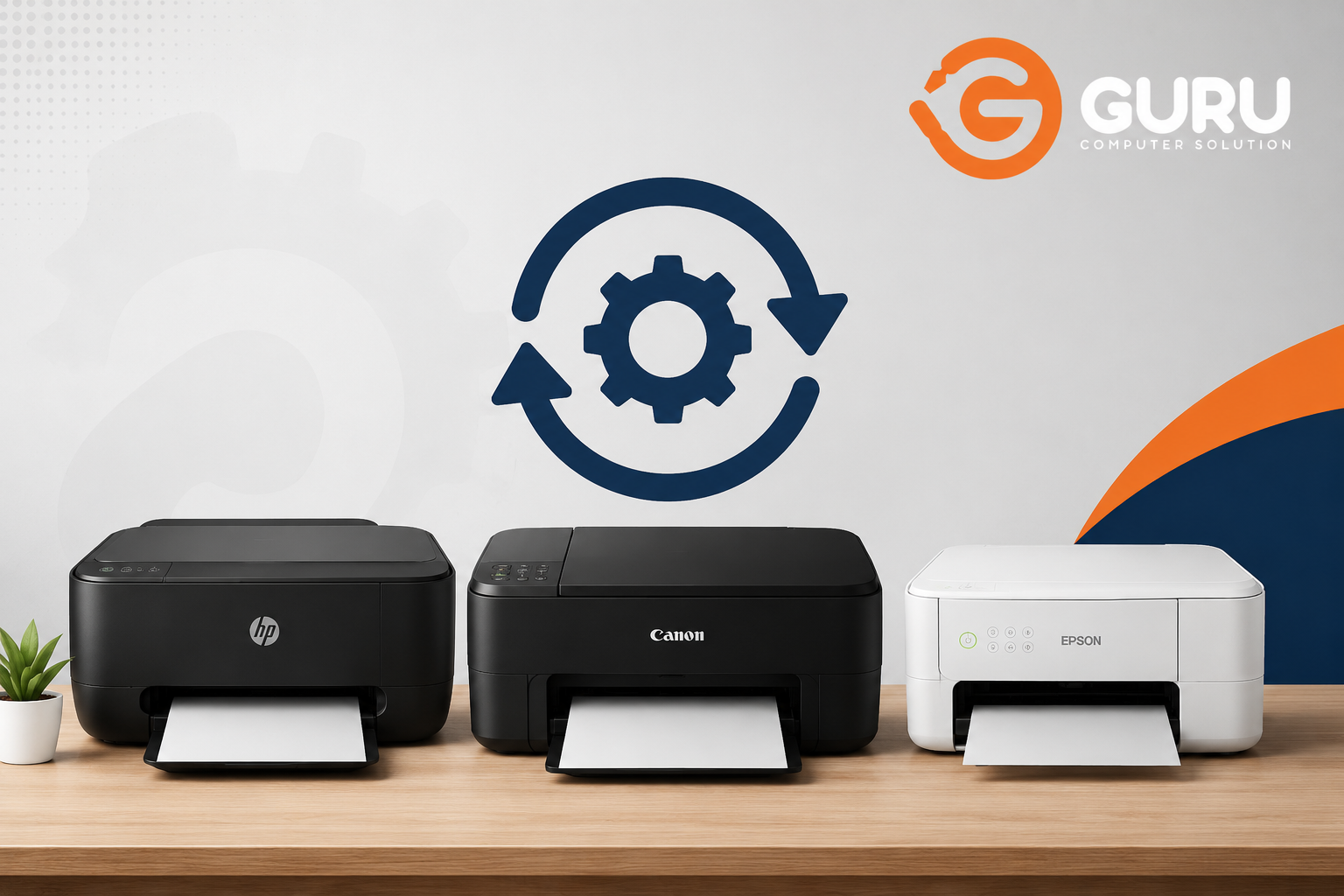
This guide explains how to reset HP, Canon, and Epson printers to factory defaults, what gets erased during the process, what does not get reset, and what you should do after the reset.
Important: Printer reset procedures vary significantly by model. The menu names and button combinations below represent common procedures and manufacturer-documented approaches, but your exact model may use a different method. Always check the manual for your specific printer before using a model-specific button combination.
Quick Answer: How Do You Factory Reset a Printer?
For many modern printers, the safest method is to use the printer's built-in settings menu.
HP
Typical touchscreen path:
Setup → Tools / Printer Maintenance → Restore → Restore Factory Defaults
HP also provides factory-reset options through the HP app and, on supported network-connected printers, the Embedded Web Server (EWS).
Canon
Many Canon PIXMA models use a menu similar to:
Setup → Device Settings → Reset Settings
However, the available reset options differ by model. Some Canon printers provide separate options for network settings, settings, or all data.
Epson
Many Epson models use:
Home → Settings → Restore Default Settings
Depending on the model, you may be able to reset only network, copy, scan, or fax settings, or choose an option such as Clear All Data and Settings.
Before You Factory Reset Your Printer
Don't immediately perform a factory reset just because the printer isn't printing.
A factory reset can remove configuration information that you may have to enter again.
Before starting, check these things:
- Is the printer powered on normally?
- Is there a paper jam?
- Is the printer showing an error code?
- Is the ink or toner actually empty?
- Is the printer connected to the correct Wi-Fi network?
- Is the computer sending the job to the correct printer?
- Is the printer showing "Offline" in Windows?
- Are there documents stuck in the print queue?
- Has the printer recently changed Wi-Fi networks?
- Did someone recently change the printer's network or administrator settings?
If the problem is simply a stuck print queue, a factory reset is usually unnecessary.
If the problem is only Wi-Fi connectivity, a network reset may be a better first step than resetting the entire printer.
Factory Reset vs Power Reset vs Network Reset
These terms are often confused.
1. Power Reset
A power reset simply restarts the printer's electronics.
A basic power reset usually involves:
- Cancel active print jobs.
- Turn the printer off.
- Wait for the printer to completely shut down.
- Disconnect the power if necessary.
- Wait briefly.
- Reconnect power.
- Turn the printer on.
This can clear temporary states, but it does not normally restore all settings to factory defaults.
2. Network Reset
A network reset removes or restores network-related configuration.
It can be useful when:
- You changed your Wi-Fi router.
- You changed the Wi-Fi password.
- The printer connects to the wrong network.
- The printer cannot be discovered by your computer.
- The printer was previously configured on another network.
- You want to configure the printer again from scratch.
HP specifically distinguishes restoring factory defaults from restoring network settings, while Canon and Epson also provide model-dependent network reset options.
3. Factory Reset
A factory reset goes further.
It returns many configurable printer settings to their original defaults.
Depending on the model, this may affect:
- Network configuration
- Wi-Fi settings
- Printer preferences
- Copy settings
- Scan settings
- Fax settings
- Administrator/configuration settings
- Stored configuration information
- Some stored data or print jobs
The exact behavior depends on the printer.
For example, HP notes that restoring factory defaults can reset printer and network settings, while some items such as page count, tray size, and language may not be reset on certain LaserJet models.
How to Factory Reset an HP Printer
HP has a large range of DeskJet, ENVY, OfficeJet, Smart Tank, LaserJet, and Enterprise printers, so there is no single button combination that works for every HP printer.
The easiest approach on supported models is usually the printer's control panel or HP app.
Method 1: Reset an HP Printer from the Touchscreen
If your HP printer has a touchscreen, try the following general procedure:
- Turn on the printer.
- Open the printer's Setup or Menu area.
- Look for Tools, Printer Maintenance, or a similar option.
- Select Restore.
- Choose Restore Factory Defaults.
- Confirm the reset.
- Wait while the printer restarts.
On many HP touchscreen models, HP documents the path as:
Setup → Tools / Printer Maintenance → Restore → Restore Factory Defaults
The printer may automatically restart after the reset.
What if the menu looks different?
Don't assume your printer is faulty.
HP uses different control-panel designs across its printer families. Some LaserJet models use:
Settings → Service → Restore Defaults
while other models use:
Printer Maintenance → Restore → Restore Factory Defaults
HP's official instructions therefore group procedures according to printer family and control-panel type.
How to Factory Reset an HP Printer Using the HP App
If your HP printer is already connected and recognized by the HP app, you may be able to reset it without navigating through the physical control panel.
General procedure:
- Open the HP app.
- Select your printer.
- Open Advanced Settings.
- Go to Settings or System.
- Find the restore/reset section.
- Select Restore Factory Defaults.
- Confirm the operation.
HP notes that some printers may ask for a printer PIN. On supported HP models, the PIN can be found on a label on the printer, commonly inside the cartridge-access area or printer door.
After the reset, allow the printer to restart completely.
How to Factory Reset an HP Printer Using the Embedded Web Server
Network-connected HP printers may provide an Embedded Web Server (EWS).
The EWS is essentially a browser-based control panel for the printer.
A typical process is:
- Find the printer's IP address.
- Enter the IP address into a web browser.
- Open the printer's EWS.
- Sign in if required.
- Open Settings or System.
- Locate the restore/reset option.
- Select Restore Factory Defaults or the corresponding reset option.
- Confirm.
HP documents EWS-based factory restoration for supported printers.
HP DeskJet and ENVY Printers Without a Touchscreen
Some HP DeskJet and ENVY models use physical buttons instead of a touchscreen.
HP documents a reset procedure for many supported models involving the Power and Wireless buttons:
- Open the cartridge-access door.
- Press and hold the Power and Wireless buttons for at least three seconds.
- Wait for the reset process.
- Follow the printer's restart behavior.
- Close the cartridge-access door when instructed.
However, this is not universal across all DeskJet or ENVY models. Do not apply a button combination simply because the printer is an HP DeskJet. Verify the exact model first.
HP LaserJet Factory Reset
LaserJet printers can use completely different reset procedures depending on their generation and control panel.
For supported LaserJet Pro models with a touchscreen, a common menu path is:
Setup → Service → Restore Defaults
Other LaserJet models may use:
Printer Maintenance → Restore → Restore Factory Defaults
Enterprise models can use:
Settings → General → Reset Factory Settings → Reset
HP also supports factory reset through the Embedded Web Server on some network-connected Enterprise printers.
Important warning for LaserJet users
Do not randomly hold buttons based on instructions for another LaserJet model.
LaserJet M100-series, M200-series, Enterprise, Pro, and older LaserJet printers can use different procedures.
How to Factory Reset a Canon Printer
Canon printers also use different reset procedures depending on whether you have a PIXMA, MAXIFY, imageCLASS, MegaTank, or another Canon printer family.
For many touchscreen PIXMA models, the reset can be performed from the printer menu.
Canon PIXMA: Reset from the Printer Menu
A common menu structure is:
Setup → Device Settings → Reset Settings
On some models, you can then select the type of information you want to reset.
Canon's documentation for supported PIXMA models shows reset options accessible through the printer's Setup/Device Settings menus.
Depending on the model, available choices may include:
- Network settings
- Device settings
- Printer settings
- All settings
- Other configuration data
The exact options vary by printer.
Canon PIXMA Printers With Physical Buttons
Some inexpensive Canon PIXMA printers do not have a large display.
Instead, they may use a button sequence or a setup menu represented by numbers on the small LCD.
For example, Canon documents a reset procedure for certain TS-series printers where the user enters the appropriate setup number and then presses a Start button.
This is why you should never assume that every Canon printer uses the same reset sequence.
A button sequence for a TS3500-series printer may not apply to an MG-series or G-series printer.
Canon G-Series / MegaTank Printers
Canon MegaTank printers can also use physical-button reset procedures.
For example, Canon documents a reset procedure for the G1230 involving the Stop button and a specified number of Alarm-lamp flashes.
The important point is that the number of flashes is model-specific.
Do not count flashes from an unrelated Canon model and assume the same procedure applies.
Canon MAXIFY and Business Printers
Business-oriented Canon printers can provide more extensive configuration menus.
Depending on the model, you may be able to reset:
- Network settings
- Device settings
- Security settings
- System-manager information
- Other configuration information
Canon's documentation for business-class devices also provides initialization through the printer's Remote UI on supported models.
How to Factory Reset an Epson Printer
Epson makes EcoTank, WorkForce, Expression, SureColor, and other printer families, and their reset procedures vary.
Fortunately, many newer Epson printers provide a straightforward menu-based reset.
Epson Touchscreen Printer
On supported models:
- Press Home.
- Open Settings.
- Select Restore Default Settings.
- Choose the category you want to reset.
- Confirm the reset.
Epson documents options that can include:
- Network Settings
- Copy Settings
- Scan Settings
- Fax Settings
- Clear All Data and Settings
Epson Network Reset
If your Epson printer prints correctly through USB but refuses to connect to Wi-Fi, you may not need a complete factory reset.
Instead, look for:
Settings → Restore Default Settings → Network Settings
This removes the network configuration while leaving other printer settings intact on supported models.
Afterward, reconnect the printer to your Wi-Fi network.
Epson Complete Reset
If you want to return the printer's configurable settings to their default state, select the appropriate full-reset option.
Some Epson models provide:
Clear All Data and Settings
Epson explains that this option can reset control-panel settings and delete stored information.
Because this can be more destructive than a network reset, use it only when necessary.
Epson Printers With Buttons Instead of Touchscreens
Older Epson printers may use physical buttons and a small LCD.
A common menu structure is:
Setup → Restore Default Settings → OK
However, the exact menu layout depends on the model and firmware.
Epson's manuals show that some models allow users to choose which categories of settings should be restored.
What Happens After a Factory Reset?
This is the part many printer-reset guides fail to explain.
After resetting the printer, it may behave like a newly configured device.
You may need to:
Reconnect Wi-Fi
If the network settings were reset, enter your Wi-Fi network name and password again.
Reinstall or Re-add the Printer
Windows or macOS may need to discover the printer again.
Reconfigure Printing Preferences
You may need to configure:
- Paper size
- Paper type
- Duplex printing
- Print quality
- Default tray
- Color/black-and-white preferences
Reconfigure Scanning
For multifunction printers, scanner-related configuration may also need to be restored.
Reconfigure Fax
If your printer has fax functionality, fax settings may need to be entered again.
Does a Factory Reset Delete Ink?
Usually, no.
A factory reset is primarily a settings/configuration operation. It should not be treated as an ink-refilling or cartridge-reset procedure.
If your printer says:
- Ink cartridge not recognized
- Cartridge empty
- Replace cartridge
- Ink system error
a factory reset may not solve the problem.
The underlying issue could be:
- Empty cartridge
- Damaged cartridge
- Dirty electrical contacts
- Incorrect cartridge
- Faulty cartridge chip
- Printhead problem
- Ink-system problem
Does a Factory Reset Fix a Printer Error?
Sometimes—but not always.
A reset can help when the error is caused by incorrect configuration, corrupted settings, or a networking problem.
It is less likely to fix a physical hardware fault.
For example, a factory reset generally won't repair:
- Broken printhead
- Damaged carriage
- Paper-feed motor failure
- Faulty encoder strip
- Damaged USB port
- Failed Wi-Fi hardware
- Mainboard failure
- Power-supply failure
- Genuine paper-feed mechanism damage
This distinction is extremely important.
A printer reset restores settings; it does not physically repair the printer.
Will Factory Reset Fix "Printer Offline"?
It can—but don't make it your first move.
If the printer is offline, first check:
- Is the printer powered on?
- Is the Wi-Fi light active?
- Is the printer connected to the same network as the computer?
- Has your router recently changed?
- Does the printer have a valid IP address?
- Is Windows using an old printer port?
- Is the print queue stuck?
- Is the printer connected through USB or Wi-Fi?
If the printer's network configuration is clearly corrupted, a network reset is often more appropriate than a complete factory reset.
Should You Reset Before Selling or Giving Away a Printer?
Yes, but a factory reset should not automatically be considered a complete privacy procedure.
Before transferring a network-connected printer:
- Remove it from your computer.
- Reset network configuration.
- Restore factory settings where supported.
- Remove stored user/network information where the model provides that option.
- Check cloud/account connections.
- Remove saved fax, scan, or other personal information where applicable.
- Confirm that the printer no longer connects automatically to your network.
HP specifically notes that restoring factory defaults does not automatically remove the printer from an HP account or cancel an Instant Ink subscription.
Therefore, if you are selling an HP printer, account-related cleanup may need to be handled separately.
What If the Printer Won't Let You Reset It?
This is where troubleshooting becomes more interesting.
If the printer refuses to perform a reset, check:
1. Is an error code currently displayed?
Some models may not allow certain reset operations while a critical error is active.
2. Is the printer busy?
Wait until printing, scanning, cleaning, or initialization has finished.
3. Is paper jammed?
Remove the jam completely and restart the printer.
4. Is the printer receiving a print job?
Clear the computer's print queue.
5. Is the firmware responding?
If the control panel is frozen, a basic power cycle may be required before attempting the reset again.
6. Are you using the correct reset procedure?
This is one of the most common causes of failure.
A reset procedure for one model should not automatically be applied to another model.
Factory Reset Didn't Fix My Printer. What Now?
If the printer still has the same problem after the reset, stop repeatedly resetting it.
Instead, identify what category the problem belongs to.
If It Is a Printing-Quality Problem
Check:
- Ink level
- Toner
- Nozzle condition
- Printhead alignment
- Printhead cleaning
- Drum condition
- Paper quality
- Printer driver
If It Is a Paper-Feeding Problem
Check:
- Paper size
- Paper tray
- Pickup rollers
- Separation pad
- Paper path
- Foreign objects
- Paper sensor
If It Is a Network Problem
Check:
- Router
- Wi-Fi band compatibility
- IP address
- DHCP
- Printer network configuration
- Driver/port
- Firewall
- Computer network
If It Is a Hardware Error
The printer may require professional diagnosis.
Common Printer Reset Mistakes
Mistake 1: Using a Reset Code From Another Model
A button sequence found online may belong to a completely different printer.
Don't assume:
"It's an HP, so this HP reset method will work."
It may not.
Mistake 2: Resetting the Entire Printer for a Wi-Fi Problem
If only Wi-Fi is broken, start with the network settings.
A full reset creates unnecessary reconfiguration work.
Mistake 3: Assuming a Reset Will Fix Empty Ink
It won't magically create ink.
Mistake 4: Repeatedly Power-Cycling a Hardware Fault
If the printer repeatedly shows a mechanical or electrical error, repeatedly unplugging it is unlikely to repair the underlying fault.
Mistake 5: Not Recording Important Settings
Before resetting a business printer, record:
- Wi-Fi name
- IP configuration
- Administrator settings
- Paper configuration
- Scan destinations
- Fax settings
- Email/SMTP settings
- Custom print preferences
This can save significant time after the reset.
How to Reconnect Your Printer After a Factory Reset
Once the printer restarts:
Step 1: Select Language
Choose your preferred language if prompted.
Step 2: Set Region/Date
Some models may ask for regional or date/time information.
Step 3: Connect to Wi-Fi
Select your wireless network and enter the password.
Step 4: Install the Manufacturer App or Driver
Use the appropriate official software for your printer.
Step 5: Add the Printer to Windows/macOS
Remove old duplicate printer entries if necessary.
Step 6: Print a Test Page
A test page confirms whether the printer itself is functioning.
Step 7: Test From Your Application
Print from Word, PDF, browser, or another application.
Frequently Asked Questions
Does factory reset remove the printer driver from my computer?
No. A printer factory reset occurs on the printer itself. The driver/software installed on your computer is a separate matter.
You may need to remove and re-add the printer if its network identity changes.
Will resetting my printer delete my documents?
A factory reset does not mean that documents stored on your computer are deleted.
However, some printer models can have stored jobs, configuration information, or other data cleared during certain reset procedures. HP, for example, notes that some factory-default procedures clear stored pages or print data on applicable LaserJet models.
Does factory reset remove Wi-Fi?
If the reset includes network settings, yes. You will generally need to configure Wi-Fi again.
Will resetting the printer improve print quality?
Not normally.
If the print quality problem is caused by clogged nozzles, a damaged printhead, worn components, incorrect paper settings, or poor ink/toner, a factory reset is unlikely to fix it.
Can I factory reset a printer without a computer?
Many printers can be reset directly through their control panel.
However, some models provide additional reset options through manufacturer software or a web interface.
What if my printer has no screen?
Some printers use physical buttons or LED flash sequences for reset procedures.
The exact combination is model-specific.
Why is my printer still offline after factory reset?
Because the reset may have erased the previous Wi-Fi configuration.
Reconnect the printer to your network and then add it again to your computer.
Does a factory reset fix cartridge errors?
Usually not.
Cartridge errors often require cartridge, contact, printhead, ink-system, or firmware troubleshooting.
Should I reset the printer if I changed my Wi-Fi password?
Usually, start with the printer's network/Wi-Fi reset rather than a complete factory reset.
How long does a factory reset take?
Many printers restart within a short period, but the exact time varies by model. Do not switch off the printer while it is actively performing the reset unless the manufacturer's instructions specifically tell you to do so.
When You Should Stop Troubleshooting and Get Professional Printer Repair
A factory reset is a software/configuration troubleshooting step.
If the printer continues to fail after resetting and reconnecting it, the problem may be hardware-related.
Professional diagnosis is recommended when you experience:
- Repeated paper jams with no visible obstruction
- Printer not powering on
- Burning smell
- Mainboard errors
- Printhead failure
- Carriage movement problems
- Persistent ink-system errors
- Damaged USB/network port
- Repeated mechanical noises
- Printer restarting repeatedly
- Error codes that return immediately after reset
- Severe print-quality problems that remain after cleaning and alignment
In these situations, repeatedly resetting the printer can waste time without addressing the actual cause.
Printer Reset in Nepal: When a Professional Repair Center Makes Sense
For users in Nepal, particularly Kathmandu Valley, printer problems can sometimes be more complicated than a simple configuration issue.
A printer may appear to have a software problem when the actual fault is related to:
- Power fluctuations
- Damaged power circuitry
- Mainboard faults
- Printhead problems
- Ink-system issues
- Paper-feed mechanisms
- Network hardware
- Sensor failures
- Firmware-related problems
If your HP, Canon, Epson, Brother, or other printer still fails after the appropriate reset and basic troubleshooting, professional inspection can help determine whether the problem is software, configuration, or hardware.
For business printers, getting a proper diagnosis can also be more economical than repeatedly replacing cartridges, reinstalling drivers, or buying another printer.
Final Verdict: Reset the Right Setting, Not Everything
A factory reset can be an excellent way to recover a printer from incorrect configuration, persistent software settings, or certain connectivity problems—but it should not be treated as a universal solution.
The best approach is to work from the least destructive option:
Power reset → Clear print queue → Network reset → Factory reset → Professional diagnosis
For HP printers, the reset may be available through the control panel, HP app, or Embedded Web Server.
For Canon printers, the procedure varies considerably between PIXMA, MAXIFY, MegaTank, imageCLASS, and other families, with some models using menu-based resets and others using model-specific button sequences.
For Epson printers, many supported models provide Restore Default Settings, with separate options for network, copy, scan, fax, or all stored settings.
Most importantly, identify your exact printer model before performing a model-specific reset. If a factory reset does not solve the problem, the issue may not be a configuration problem at all—it may require actual printer repair or component-level diagnosis.
Quick Reset Reference
HP:
Setup → Tools / Printer Maintenance → Restore → Restore Factory Defaults
Canon:
Setup → Device Settings → Reset Settings
Epson:
Home → Settings → Restore Default Settings
Wi-Fi problem:
Try Network Reset first.
Printer hardware problem:
A factory reset will not repair damaged hardware.
Still not working after reset:
Check the exact error code and consider professional diagnosis.