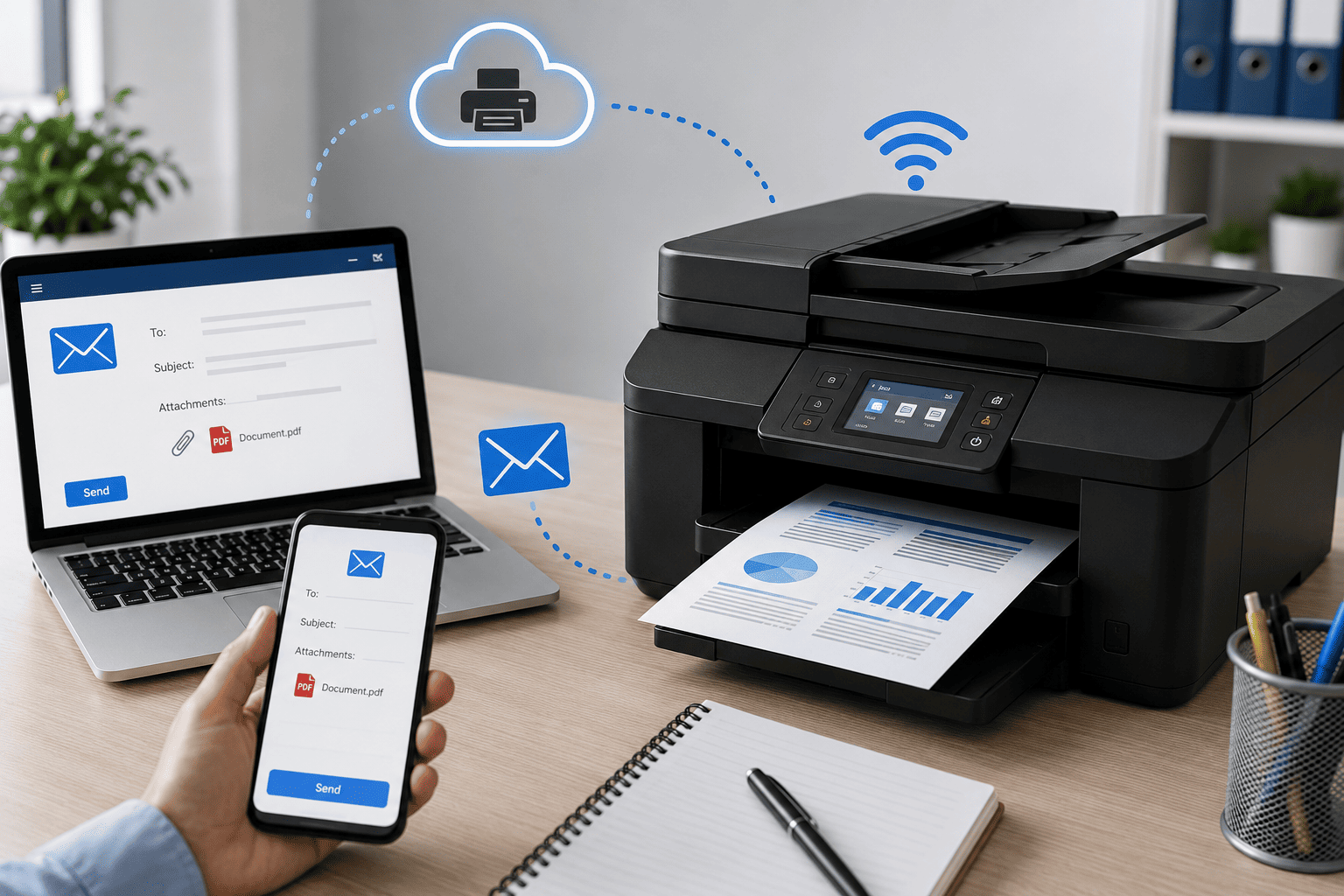
Email-to-print allows employees to send a document to a designated printer email address and have the multifunction printer print it automatically. This can be useful in offices where employees need to print from laptops, phones, remote locations, or devices that are not directly connected to the printer.
Depending on the multifunction printer model, email-to-print may use a manufacturer's cloud service, an embedded email-print feature, or a print management system. Proper configuration is important because the printer may need network access, email authentication, security settings, and authorized sender controls.
Problem
The customer wants employees to print documents by sending them through email instead of connecting directly to the office printer.
The multifunction printer may support email-to-print, but the feature has not been configured correctly, or the printer cannot communicate with the required email or cloud service.
What Problem Is the Customer Facing?
Customers may experience:
- Printer does not receive print emails
- Emails arrive but documents are not printed
- Printer email address is not working
- Attachments are ignored
- Printer shows an email authentication error
- SMTP connection fails
- Printer cannot connect to the email server
- Employees receive failed print notifications
- Email-to-print works for some users but not others
- Printer cannot access the internet
- Documents remain in a print queue
- Large attachments fail to print
- Office wants secure printing through email
- Employees need to print from phones or remote locations
Root Causes of the Problem
1. Email-to-Print Feature Is Not Enabled
Some multifunction printers require email printing to be enabled through the printer's web management interface, administrator settings, or cloud service.
2. SMTP Settings Are Incorrect
If the printer sends or receives email through an SMTP-based configuration, incorrect server settings can prevent communication.
Common configuration details include:
- SMTP server
- Port
- Encryption method
- Authentication
- Sender email address
- Username
- Password or approved authentication method
The exact settings depend on the email provider and printer system.
3. Incorrect Printer Email Address
A dedicated email address or cloud-generated address may be required for the printer.
If employees send documents to the wrong address, the printer will not receive the print request.
4. Network Connection Problem
The multifunction printer needs reliable network connectivity to communicate with its email or cloud-printing service.
Problems with Wi-Fi, Ethernet, DNS, gateway, firewall rules, or internet access can prevent email-to-print from working.
5. Email Authentication Failure
Modern email systems may reject older or insecure authentication methods.
A printer that relies on outdated SMTP authentication may require updated firmware, an application-specific authentication method, or a supported cloud service.
6. Sender Is Not Authorized
Many office print systems allow administrators to restrict which email addresses can send print jobs.
If an employee's email address is not authorized, the printer may reject the request.
7. Unsupported Attachment Type
The printer or cloud service may support only specific document formats.
A supported PDF file may print successfully while an unsupported file format is rejected.
8. File Size Is Too Large
Email services and printer platforms may impose attachment-size limits.
Large PDFs, presentations, scanned documents, or image files may fail to process.
9. Printer Is Offline or in an Error State
Even when email-to-print is configured correctly, the printer may not process jobs if it is:
- Offline
- Out of paper
- Out of toner or ink
- Jammed
- In sleep or error mode
- Disconnected from the network
10. Firmware or Software Compatibility Problem
Older multifunction printer firmware may not properly support current email security requirements or cloud-printing services.
Updating firmware may be necessary when recommended by the printer manufacturer.
How Can Customers Identify the Issue?
Look for:
- Printer has a network connection but email printing does not work
- Test emails are not reaching the printer
- Printer receives email but does not print attachments
- Sender receives an error or rejection message
- SMTP authentication error appears
- Printer shows DNS or network connection errors
- Email-to-print works only from authorized addresses
- Small documents print but large files fail
- PDF files work while other formats do not
- Printer was recently moved to another network
- Office email security settings were recently changed
- Email-to-print stopped working after a firmware or service change
Possible Solutions
1. Check Whether the Printer Supports Email-to-Print
First, verify the exact multifunction printer model and its available features.
Check the manufacturer's documentation for:
- Email printing
- Email-to-print
- Cloud printing
- Mobile printing
- Remote printing
- Print management services
Not every multifunction printer supports the same email-printing method.
2. Connect the Printer to the Network
Make sure the printer has a stable Ethernet or Wi-Fi connection.
Check:
- IP address
- Default gateway
- DNS settings
- Internet connectivity
- Network cable
- Wi-Fi signal
- Firewall configuration
If the printer cannot communicate with the required service, email-to-print will not work.
3. Enable the Email-to-Print Feature
Access the printer's administrator interface or supported cloud-printing service.
Depending on the model, configure the relevant email or remote-printing feature.
Use the printer manufacturer's instructions because menus and available options differ between models.
4. Configure Email or Cloud Service Settings
If the printer requires email server configuration, enter the correct settings provided by the email provider or service.
Verify:
- SMTP server
- SMTP port
- Encryption
- Authentication
- Sender address
- Credentials or approved authentication method
Never guess these settings because modern email services may require specific security configurations.
5. Create or Assign the Printer Email Address
If the service provides a dedicated email address for the printer, configure it correctly.
Use a dedicated office account or managed print address where appropriate rather than exposing a personal employee account.
6. Configure Authorized Senders
For office environments, restrict who can send print jobs if the printer or service supports sender controls.
Add the required employee or department email addresses.
This can help prevent unauthorized users from sending unwanted print jobs.
7. Configure Supported File Types
Check which attachments the printer or cloud service accepts.
For office use, PDF is often a convenient format because it preserves document layout, but the exact supported formats depend on the printer and service.
8. Check Attachment Size Limits
If large documents fail to print, check the maximum supported email or attachment size.
For oversized documents, consider:
- Compressing the file
- Reducing image resolution
- Splitting the document
- Using the manufacturer's cloud-printing system
- Printing through a normal network connection
9. Check Printer Status
Before testing email printing, verify:
- Paper is loaded
- Printer is online
- No paper jam exists
- Toner or ink is available
- Printer is not displaying an error
- Correct paper tray is selected
A printer error can prevent an otherwise correctly configured email print job from completing.
10. Send a Test Print Email
Send a simple test message from an authorized email account.
Start with a small PDF attachment.
Check whether:
- The email reaches the service
- The attachment is accepted
- The printer receives the request
- The document enters the print queue
- The page prints correctly
Testing with a simple file makes troubleshooting easier.
11. Check Email Security and Authentication
If email-to-print suddenly stops working, check whether the organization's email provider has changed its authentication or security requirements.
The printer may need:
- Firmware updates
- A supported authentication method
- Updated SMTP configuration
- A manufacturer's cloud-printing service
- An administrator-approved relay configuration
Avoid weakening office email security simply to make an older printer work.
12. Update Printer Firmware When Appropriate
If the manufacturer provides a firmware update that addresses email, network, cloud, or security compatibility, update the printer according to the official procedure.
Use the firmware intended for the exact multifunction printer model.
13. Check Firewall and Network Restrictions
Corporate networks may restrict outbound connections from printers.
A technician can check whether firewall or network policies are preventing the printer from reaching the required email or cloud service.
14. Test From Multiple Authorized Users
Once the system works from one account, test it from several authorized employee accounts.
Confirm that:
- Emails are accepted
- Attachments print correctly
- Unauthorized senders are rejected if restrictions are enabled
- Print jobs reach the correct printer
- Different supported file types behave correctly
15. Secure the Email-to-Print System
For office environments, security should be considered during setup.
Recommended controls may include:
- Authorized sender lists
- Dedicated printer email accounts
- Strong authentication
- Firmware updates
- Network security
- Restricted administrator access
- Regular password management
An unsecured email-to-print system could allow unauthorized users to send documents to the office printer.
Why Choose Guru Computer Solution?
1. Experienced Technicians
Our technicians can configure multifunction printer networking, email printing, cloud printing, drivers, and office connectivity.
2. Network and Email Configuration
We can help configure the printer's network and supported email or cloud-printing settings so employees can send print jobs conveniently.
3. Office Printer Setup
We can configure email-to-print for office environments with appropriate sender restrictions and printer access controls.
4. Troubleshooting Support
If email print jobs are rejected, delayed, or never reach the printer, we can diagnose network, authentication, attachment, and printer configuration problems.
5. Secure Configuration
We can help businesses configure email printing with appropriate access controls instead of leaving the printer open to unauthorized print requests.
6. Affordable Office Support
We diagnose the actual configuration or connectivity problem before recommending unnecessary printer replacement or additional equipment.