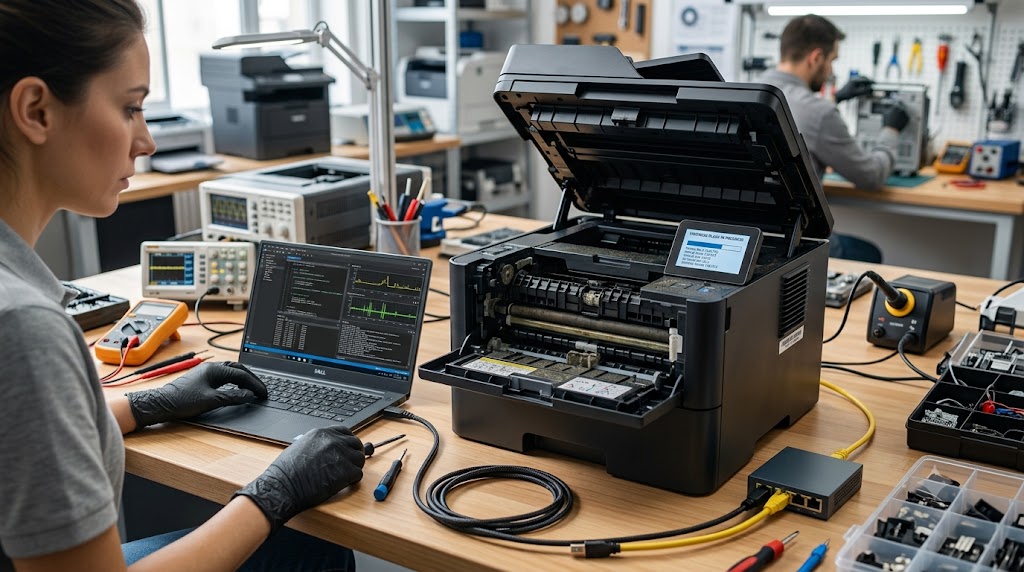
Printer firmware updates can improve performance, enhance security, fix bugs, and add support for new features. However, updating firmware incorrectly can lead to serious problems, including failed updates, printer communication errors, feature loss, or even a completely unresponsive printer. While firmware updates are generally safe when performed correctly, understanding the proper process is essential to avoid accidental downgrades, interrupted updates, and situations that can leave a printer temporarily or permanently unusable.
What problem is the customer facing?
Users may encounter:
- Failed firmware updates
- Printer becoming unresponsive after an update
- Lost printer functionality
- Network connectivity issues
- Error messages during firmware installation
- Inability to use certain cartridges after updates
- Firmware rollback failures
- Printer not booting correctly
These issues often occur when firmware updates are performed incorrectly or interrupted during installation.
Root causes of the problem.
1. Interrupted Power Supply
A power outage during firmware installation can corrupt the firmware.
2. Incorrect Firmware File
Installing firmware intended for a different printer model can cause serious problems.
3. Network Connection Failures
Wireless interruptions may disrupt firmware transfer.
4. Unsupported Downgrades
Many manufacturers block firmware downgrades for security and stability reasons.
5. Corrupted Firmware Downloads
Incomplete or damaged firmware files can cause installation failures.
6. USB Communication Errors
Faulty cables or unstable connections may interrupt updates.
7. User Error
Closing update software or powering off the printer prematurely can cause firmware corruption.
How can customers identify the issue?
Common warning signs include:
- Firmware update stuck indefinitely
- Printer fails to restart properly
- Blank display screen
- Continuous reboot loops
- Network features stop working
- Printer no longer detected by computers
- Error codes immediately after updating
- Missing printer functions
Additional Signs
- Firmware version not updating correctly
- Printer remains in recovery mode
- Print jobs no longer process normally
Possible solutions.
Step 1: Verify the Printer Model
Confirm the exact model number before downloading firmware.
Step 2: Download Firmware from Official Sources
Always obtain firmware directly from the manufacturer's support website.
Step 3: Use a Stable Power Source
Avoid updating during storms or unstable power conditions.
Step 4: Prefer Wired Connections
Use USB or reliable Ethernet connections whenever possible.
Step 5: Backup Printer Settings
Export network and configuration settings if supported.
Step 6: Follow Manufacturer Instructions
Use the recommended update method for your printer model.
Step 7: Do Not Interrupt the Process
Never disconnect power or communication cables during the update.
Step 8: Verify Firmware Version
Confirm successful installation after rebooting the printer.
Common Mistakes to Avoid
Installing the Wrong Firmware
Always double-check compatibility.
Forcing Firmware Downgrades
Many printers are designed to block unsupported firmware versions.
Updating Over Unstable Wi-Fi
Connection drops can corrupt the update process.
Ignoring Release Notes
Important requirements may be listed before installation.
Powering Off Too Early
Some updates require several automatic restarts.
Why Choose Guru Computer Solution?
1.Certified Technicians
Experienced in printer firmware management and recovery procedures.
2.Genuine Software Support
Safe firmware installation using manufacturer-approved files.
3.Fast Turnaround
Quick diagnostics and firmware recovery services.
4.Warranty Support
Repairs and maintenance backed by service warranty.
5.Affordable Pricing
Cost-effective printer troubleshooting and support solutions.
Conclusion
Firmware updates can improve printer performance, security, and compatibility, but they must be performed carefully to avoid installation failures and system corruption. Using the correct firmware, maintaining a stable power source, and following manufacturer instructions can significantly reduce the risk of update-related problems. Taking a few precautions before updating can help keep your printer running reliably and prevent costly downtime.
If your printer has failed after a firmware update or is experiencing firmware-related issues, Guru Computer Solution can provide professional diagnostics, firmware recovery, software troubleshooting, and repair services to restore normal printer operation.