If your laptop has become slow, takes too long to start Windows, or struggles when opening applications, upgrading from an old hard drive to an SSD can make a noticeable difference. But before upgrading, most users want to know one thing: how much does a laptop SSD upgrade cost in Nepal?
The total cost depends on the SSD capacity, type, brand, laptop compatibility, and whether you also need services such as Windows installation, data transfer, or HDD-to-SSD cloning. A 256GB SSD will naturally cost less than a 1TB SSD, while NVMe SSDs and SATA SSDs can also have different prices.
For an accurate quote, the laptop model should be checked first because not every laptop supports the same type of SSD.
Laptop SSD Upgrade Price in Nepal
The laptop SSD upgrade price in Nepal depends mainly on the type and capacity of the SSD you choose. Common options include 256GB, 512GB, and 1TB SSDs, while the laptop may support either SATA or NVMe storage.
Currently a 256GB SATA SSD generally costs around NPR 4,300–7,000+, while a 512GB SATA SSD is roughly NPR 10,000–14,000+. For 512GB NVMe SSDs, prices commonly fall around NPR 13,000–18,000+. A 1TB SATA SSD can cost approximately NPR 17,000–25,500, while 1TB NVMe SSDs can range from around NPR 29,000+ to NPR 42,000+, depending on the brand and model.
These are approximate retail prices based on current Daraz listings and can change with discounts, stock, seller, and model. The SSD price also does not necessarily include installation, Windows setup, cloning, or data-transfer charges.
The price of the SSD itself is separate from the cost of installing it. If you only need the SSD installed, the service may be relatively simple. However, if you want your existing Windows installation and files transferred to the new SSD, the upgrade may also involve cloning or data-transfer work
SATA SSD vs NVMe SSD: Which One Does Your Laptop Need?
Before buying an SSD, you need to know what type your laptop supports.
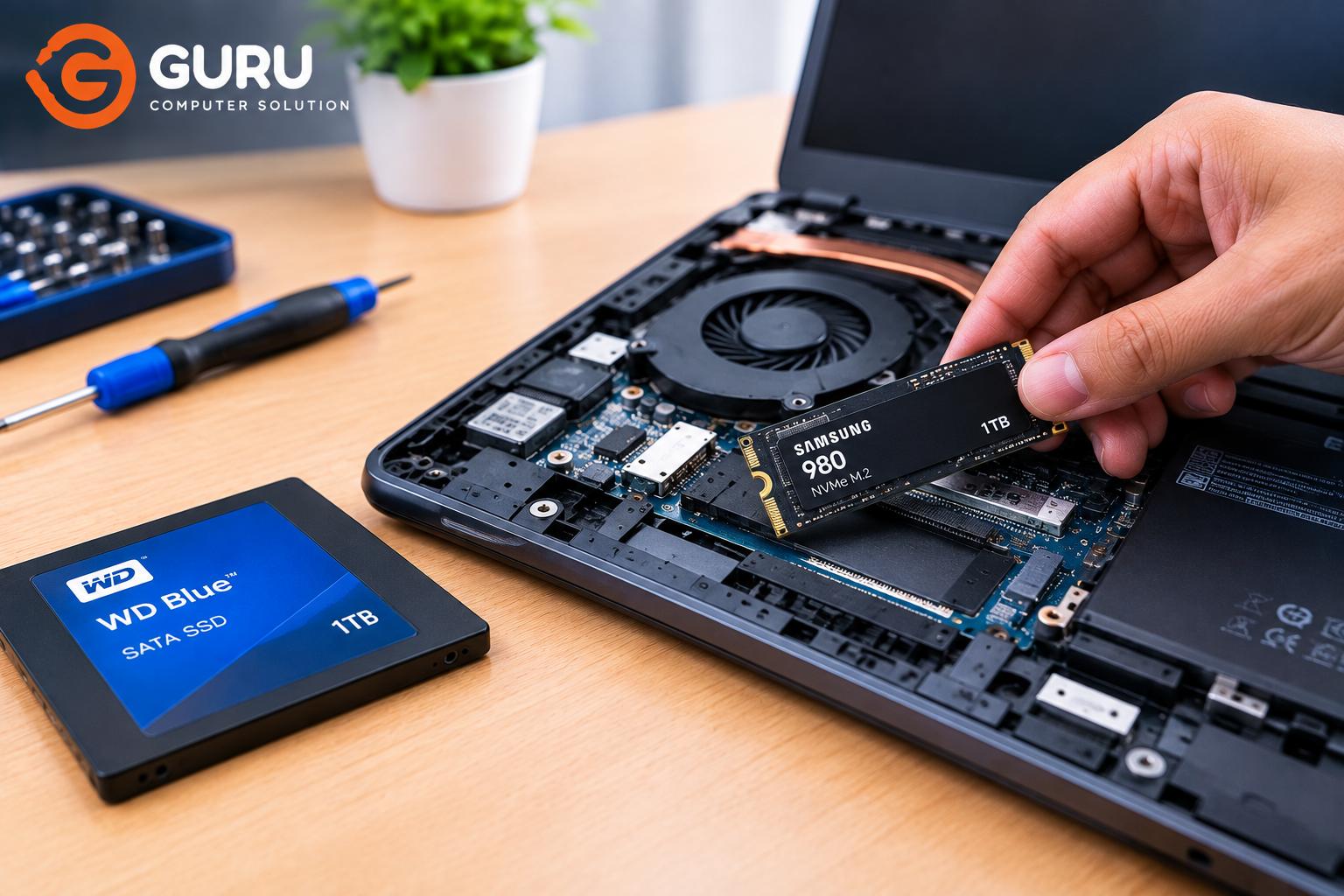
A 2.5-inch SATA SSD is commonly used as a replacement for an existing 2.5-inch laptop HDD. If your older laptop currently has a mechanical hard drive, this can often be one of the simplest ways to upgrade its storage and improve performance.
Some laptops use an M.2 SSD. However, M.2 refers to the physical form factor and does not automatically mean that the drive is NVMe. M.2 drives can use different interfaces, including SATA and NVMe.
An M.2 NVMe SSD can provide significantly higher storage performance than a SATA SSD, but the laptop's motherboard must support NVMe.
This is why you should not purchase an SSD simply because it is advertised as fast or inexpensive. The exact laptop model should be checked first to determine whether it supports a 2.5-inch SATA SSD, M.2 SATA, M.2 NVMe, or another configuration.
Will an SSD Make Your Laptop Faster?
For a laptop currently using a mechanical HDD, an SSD upgrade can make a very noticeable difference in everyday use.
Windows can start faster, applications can open more quickly, files can load faster, and the system can feel much more responsive.
One of the biggest improvements is the reduction in waiting time. Tasks that previously involved long loading periods on an HDD can become much quicker after moving to an SSD.
An SSD does not make your CPU or graphics processor faster, however. If your laptop has an old processor or insufficient RAM, those components can still limit overall performance.
But when the HDD is the main storage bottleneck, replacing it with an SSD is often one of the most worthwhile upgrades for an older laptop.
Should You Upgrade Your Laptop From HDD to SSD?
If your laptop is otherwise working well but feels extremely slow, an HDD-to-SSD upgrade can be a very practical solution.
This is especially useful for older laptops that still have a usable processor, sufficient RAM, and a functioning motherboard. Instead of replacing the entire laptop, you can improve one of its biggest performance bottlenecks by replacing the mechanical hard drive.
An SSD upgrade may not be enough if the laptop has several other serious problems. For example, an extremely old CPU, insufficient RAM, a damaged motherboard, or other major hardware issues can continue to limit performance even after installing an SSD.
For a laptop that is still suitable for your everyday needs, however, upgrading the storage can often extend its useful life.
SSD Upgrade vs Buying a New Laptop
Before spending money on an SSD upgrade, it is worth considering the overall condition of the laptop.
If the laptop's display, keyboard, battery, motherboard, processor, and RAM are still adequate for your work, an SSD upgrade can be much cheaper than purchasing a completely new laptop.
On the other hand, if the laptop already has multiple major problems or its hardware is no longer capable of handling your requirements, investing in an SSD alone may not provide enough improvement.
For example, upgrading a five-year-old laptop that is simply slow because of its HDD can make a lot of sense. Upgrading a much older laptop with a failing motherboard, very limited RAM, and an outdated processor may be a different situation.
A technician can inspect the laptop and help determine whether an SSD upgrade is worthwhile.
What Happens to Your Data During an SSD Upgrade?
One of the biggest concerns users have before upgrading is their existing data.
Installing a new SSD does not automatically transfer everything from your old drive. Your files, Windows installation, applications, and settings need to be transferred separately if you want to retain them.
There are generally two approaches.
The first is a fresh Windows installation. The new SSD is installed, Windows and the required drivers are installed, and your personal files can then be transferred from the old drive.
The second option is HDD-to-SSD cloning. If the old drive is healthy and the setup is suitable, its operating system, files, and other data can potentially be copied directly to the new SSD.
Cloning can be convenient because it can allow you to continue using the system without setting everything up from scratch. However, cloning is not always appropriate when the old HDD is severely damaged or failing.
If your old drive is showing signs of failure, important files should be backed up as soon as possible.
Can You Keep Your Old HDD After Installing an SSD?
In some laptops, you can keep the old HDD after installing an SSD, but this depends on the laptop's physical design.
If the laptop has a second internal storage slot, it may be possible to use both drives. This can allow the SSD to handle Windows and applications while the HDD is used for additional storage.
If the laptop only has one internal drive bay, another option is to place the old HDD inside a compatible USB enclosure and use it as an external storage drive.
However, an old HDD should only be reused if it is healthy. If it was replaced because it was failing, using it as important storage could put your data at risk.
Which SSD Capacity Is Best for Your Laptop?
Choosing the right capacity depends on how you use your laptop.
A 256GB SSD can be enough for basic browsing, office work, online classes, and light everyday use. However, you may run out of space relatively quickly if you install many applications or store large files.
A 512GB SSD is a good middle-ground choice for many users. It provides enough space for Windows, applications, documents, photos, and other everyday files without making the upgrade unnecessarily expensive.
A 1TB SSD is more suitable for users who need substantial storage. Gamers, video editors, photographers, and people who keep large amounts of media on their laptops may prefer this capacity.
If you're unsure, 512GB is often a practical starting point for a general-purpose laptop.
How Is a Laptop SSD Upgrade Done?
A proper SSD upgrade begins with checking the laptop's model and determining which storage interface it supports.
The technician can then check the existing drive, discuss whether the customer wants a fresh Windows installation or data cloning, and select a compatible SSD.
The laptop is carefully opened and the existing storage drive is removed or the new SSD is installed into the available M.2 slot, depending on the laptop's design.
Windows can then be installed or the existing system can be cloned when appropriate. Drivers and required settings are configured, and the new SSD is tested to make sure it is detected and functioning properly.
The laptop should also be checked after installation to ensure that Windows starts normally and the storage drive is operating correctly.
Laptop SSD Upgrade in Kathmandu
If you are looking for a laptop SSD upgrade in Kathmandu, Guru Computer Solution in New Road can help identify the correct SSD for your laptop and determine whether an upgrade is worthwhile.
The service can involve HDD-to-SSD upgrades, SATA SSD installation, NVMe SSD installation, Windows installation, data transfer, and HDD-to-SSD cloning, depending on the laptop and customer's requirements.
Because SSD compatibility varies between laptop models, providing the exact laptop model number is the best way to determine which SSD is suitable and what the upgrade is likely to cost.
If your laptop is slow but otherwise works well, an SSD upgrade may be a practical way to improve its responsiveness without replacing the entire machine.
Frequently Asked Questions
How much does a laptop SSD upgrade cost in Nepal?
The total cost depends on the SSD capacity, brand, SATA or NVMe interface, laptop compatibility, and whether you need additional services such as Windows installation, cloning, or data transfer. SSD prices also change based on current market availability.
How much does a 512GB SSD cost in Nepal?
The price of a 512GB SSD varies by brand, model, interface, and performance. SATA and NVMe 512GB SSDs can have different prices, so the exact SSD should be identified before estimating the complete upgrade cost.
How much does a 1TB SSD cost in Nepal?
A 1TB SSD generally costs more than a 512GB model, but the exact price depends on the brand, SSD type, interface, and current Nepal market pricing.
Should I buy a SATA SSD or NVMe SSD?
You should buy the type that your laptop supports. NVMe SSDs can offer higher performance, but an NVMe drive cannot simply be installed in every laptop. Compatibility should be checked first.
Will an SSD make my laptop faster?
If your laptop currently uses a mechanical HDD, an SSD can significantly improve boot times, application loading, file access, and overall responsiveness.
Will I lose my data when upgrading to an SSD?
Not necessarily. Your data can potentially be transferred or the old drive can be cloned if it is healthy and the setup is suitable. Important data should always be backed up before performing the upgrade.
Can I keep my old HDD after installing an SSD?
If your laptop supports a second internal drive, you may be able to keep both. Otherwise, the old HDD can potentially be used externally with a compatible USB enclosure, provided the drive is healthy.
Is 256GB enough for a laptop?
It can be enough for basic users who mainly browse, use office applications, and store relatively few files. For most users, 512GB provides more comfortable storage.
Can every laptop use an NVMe SSD?
No. NVMe compatibility depends on the laptop's motherboard and available storage interface. The exact laptop model should be checked before purchasing an NVMe SSD.
Is an SSD upgrade better than buying a new laptop?
If the laptop is otherwise in good condition and the main problem is slow storage, an SSD upgrade can be a cost-effective way to improve performance. If the laptop has several major hardware limitations, purchasing a new laptop may make more sense.