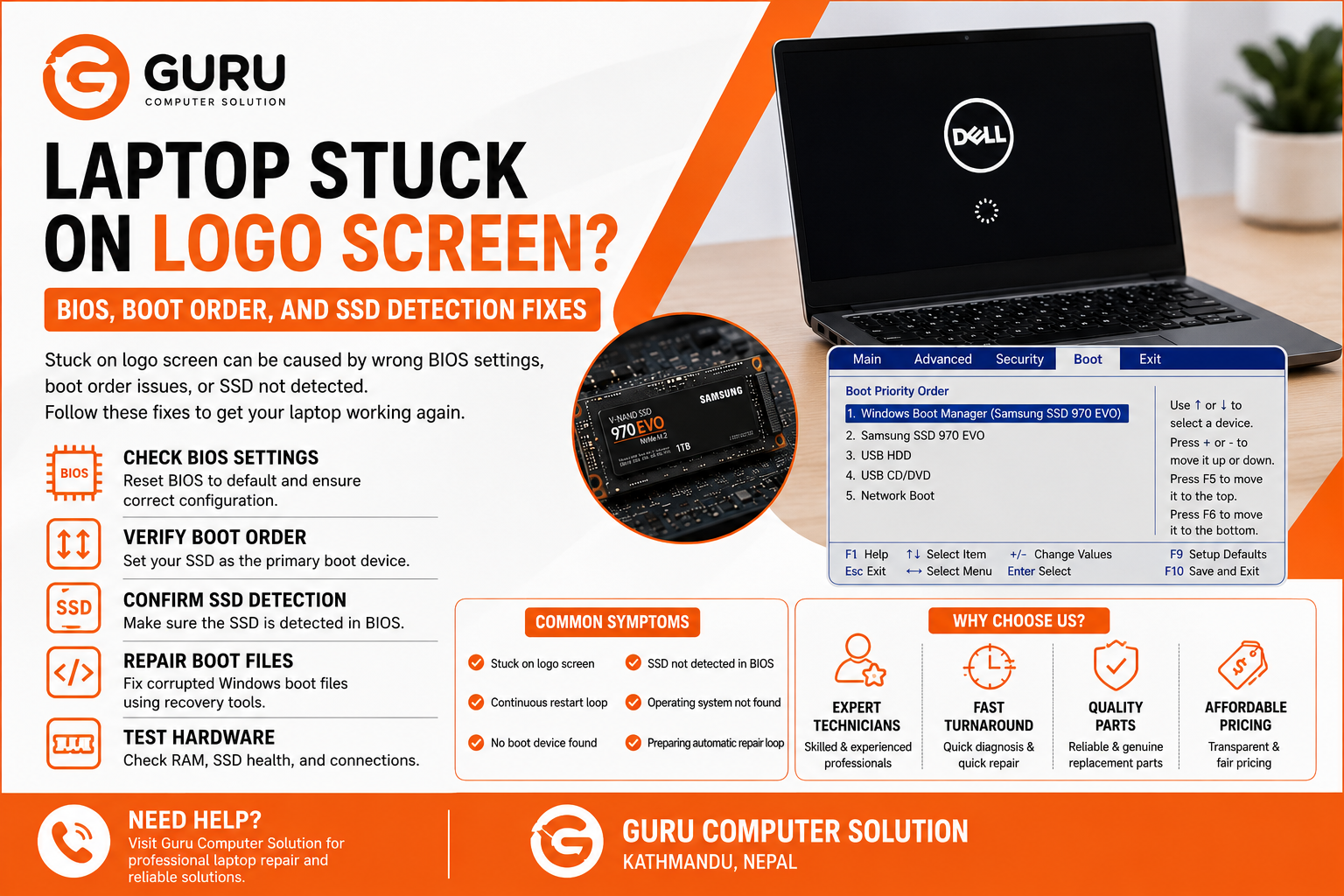
A laptop that gets stuck on the manufacturer's logo screen can be frustrating, preventing you from accessing Windows or your files. This issue may occur after a BIOS update, Windows installation, SSD upgrade, power outage, or unexpected system crash. While it may seem like a major hardware failure, the problem is often caused by incorrect BIOS settings, an improper boot order, an undetected SSD, or corrupted boot files.
In this guide, you'll learn the common causes of a laptop getting stuck on the logo screen, how BIOS and boot settings affect startup, and when the issue requires SSD replacement or motherboard repair. At Guru Computer Solution, our certified technicians perform professional diagnostics to identify the exact cause and restore your laptop to normal operation.
Problem
A laptop stuck on the logo screen fails to continue the boot process, leaving users unable to access Windows or their important files. The laptop powers on normally and displays the manufacturer's logo, but it freezes indefinitely or continuously restarts without loading the operating system.
This problem can affect laptops from any brand, including Dell, HP, Lenovo, ASUS, Acer, MSI, Apple, and LG. In some cases, the issue is caused by incorrect BIOS settings or a damaged SSD, while in others it may be related to corrupted boot files or motherboard faults. Since several hardware and software components are involved in the startup process, professional diagnosis is essential to determine the correct solution.
What Problem Is the Customer Facing?
Customers experiencing this issue often cannot use their laptop despite it powering on normally. Instead of loading Windows, the device remains on the manufacturer's logo screen, repeatedly restarts, or displays messages such as "No Boot Device Found" or "Operating System Not Found." Many users worry they have lost their files or that the motherboard has failed.
Although these symptoms appear similar, the underlying cause can vary from incorrect BIOS configuration and boot order settings to SSD detection problems, damaged storage devices, corrupted Windows boot files, or motherboard-related hardware failures. Without proper diagnostics, replacing the SSD or reinstalling Windows may not solve the issue.
Why Does It Happen?
Root Causes of the Problem
A laptop may become stuck on the logo screen for several reasons, including:
- Incorrect BIOS settings
- Wrong boot priority or boot order
- SSD or HDD not detected by BIOS
- Loose SSD or SATA connection
- Corrupted Windows boot files
- Failed Windows update
- Damaged SSD or hard drive
- BIOS firmware corruption
- UEFI and Legacy boot mode mismatch
- Secure Boot configuration issues
- File system corruption
- Faulty RAM preventing successful boot
- Motherboard storage controller failure
- Power interruption during startup
- Malware affecting boot files
How Can Customers Identify the Issue?
Common signs include:
- Laptop freezes on the manufacturer logo
- Windows never loads
- Continuous restart loop
- "Preparing Automatic Repair" loop
- SSD not detected in BIOS
- "No Boot Device Found" message
- "Operating System Not Found" error
- Black screen after the logo
- BIOS opens automatically during startup
- Slow startup before freezing
- Keyboard becomes unresponsive on the logo screen
- Boot device disappears intermittently
Possible Solutions
1. Check BIOS Settings
Incorrect BIOS settings are a common cause of startup problems. Resetting BIOS to default settings and verifying storage detection can often resolve the issue.
2. Verify Boot Order
Ensure the SSD containing Windows is selected as the primary boot device. Incorrect boot priority can prevent the laptop from loading the operating system.
3. Confirm SSD Detection
Open the BIOS setup and check whether the SSD is recognized. If the drive is missing, technicians inspect:
- SSD connection
- M.2 or SATA slot
- SSD health
- Motherboard storage controller
4. Repair Windows Boot Files
If the SSD is detected but Windows will not start, repairing boot files using Windows Recovery tools may restore normal startup.
5. Test SSD Health
Using professional diagnostic software, technicians evaluate:
- SMART health status
- Bad sectors
- Read/write performance
- Remaining lifespan
A failing SSD should be replaced before complete data loss occurs.
6. Inspect RAM
Faulty RAM can interrupt the Power-On Self-Test (POST), preventing the system from progressing beyond the logo screen. Reseating or replacing defective memory modules may resolve the issue.
7. Update or Recover BIOS
If BIOS firmware has become corrupted, updating or reprogramming the BIOS chip may restore normal boot functionality.
8. Motherboard Repair
If diagnostics reveal motherboard faults such as a damaged storage controller, power circuit issue, or chipset failure, advanced chip-level repair may be required.
Why Choose Guru Computer Solution?
1. Certified Technicians
Our skilled technicians diagnose both hardware and software startup issues using advanced diagnostic tools.
2. Genuine Parts
We use high-quality SSDs, RAM modules, and replacement components for reliable repairs.
3. Fast Turnaround
Most BIOS configuration, SSD diagnostics, and boot repairs are completed quickly to minimize downtime.
4. Warranty Support
Eligible repairs and component replacements include warranty support for your peace of mind.
5. Affordable Pricing
We provide transparent pricing and recommend repairs only after accurately identifying the root cause.