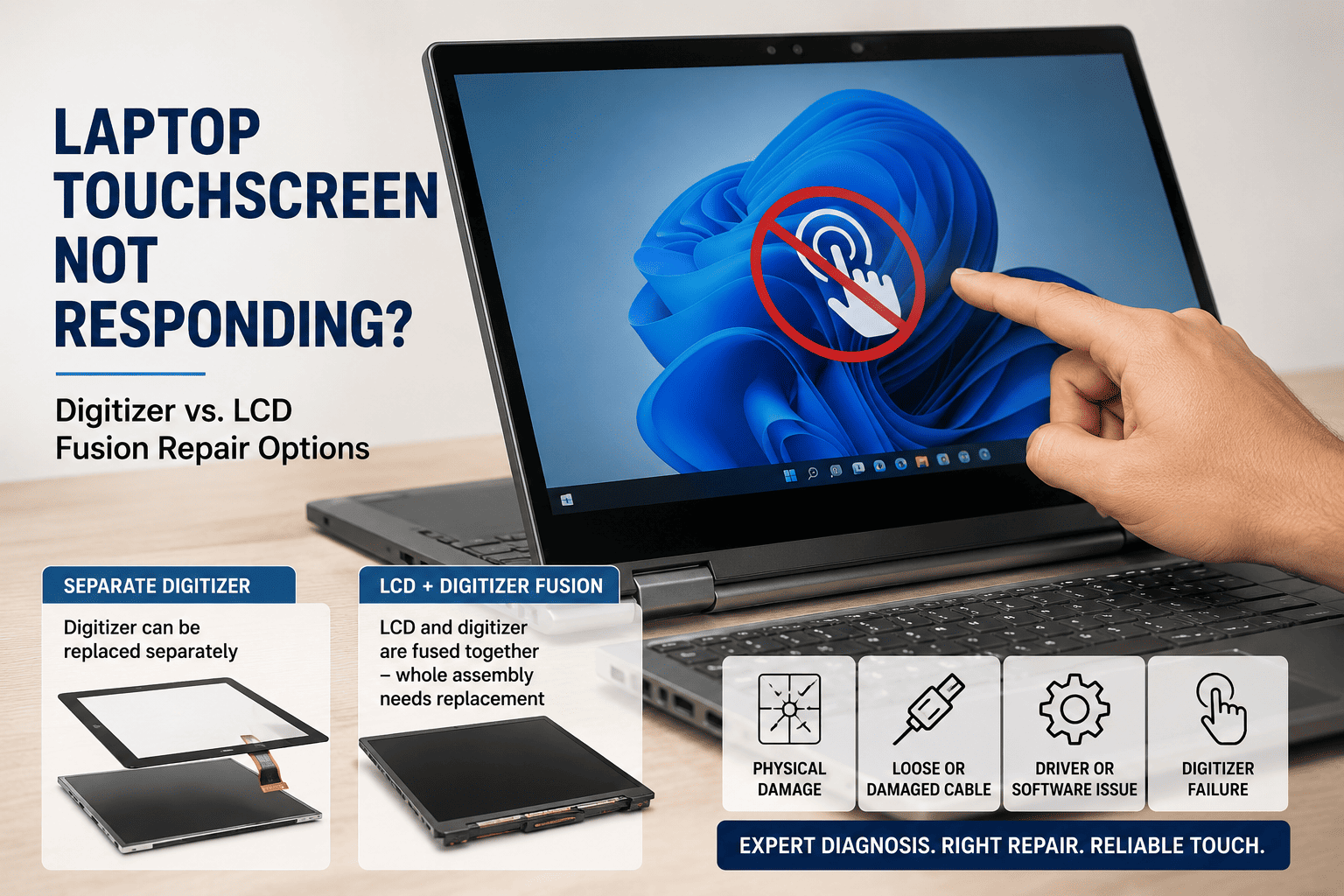
A laptop touchscreen that suddenly stops responding can make the device difficult to use, especially on 2-in-1 and convertible laptops. The problem may be caused by a disabled touchscreen driver, Windows settings, a damaged digitizer, a faulty display cable, or physical damage to the touchscreen assembly.
One important factor is whether the digitizer and LCD are separate components or fused together. If only the digitizer is damaged, some laptop models may allow digitizer-level replacement. On fused display assemblies, the LCD and touch layer may need to be replaced together.
At Guru Computer Solution, technicians diagnose the touchscreen system first to determine whether the problem can be repaired at the component level or requires a complete display assembly replacement.
Problem
The laptop display works normally, but touch input does not respond correctly. The touchscreen may fail completely, respond only in certain areas, or register random touches without the user touching the screen.
In some cases, the display itself remains perfectly clear, making it difficult to determine whether the issue is software-related or caused by a damaged digitizer.
What Problem Is the Customer Facing?
Customers may find that their touchscreen laptop displays Windows normally but does not respond to finger or stylus input. Some users experience intermittent touch response, dead areas, ghost touches, or inaccurate touch registration.
The problem can occur after a drop, screen impact, liquid exposure, hinge damage, Windows update, driver issue, or display replacement. A touchscreen that looks physically perfect can still have a damaged digitizer underneath the glass.
Root Causes of the Problem
1. Disabled Touchscreen Driver
The touchscreen device may be disabled in Windows or the HID touchscreen driver may have stopped working.
2. Driver or Windows Problem
A corrupted driver, Windows update, or system configuration issue can cause touch input to stop responding.
3. Damaged Digitizer
The digitizer is the touch-sensitive layer that detects finger or stylus input. Physical impact, pressure, or internal failure can damage it.
4. Cracked Touch Glass
A cracked glass layer can prevent touch from working correctly, even when the LCD image remains normal.
5. Loose Display Cable
A loose or damaged display connection can affect touch communication between the touchscreen assembly and motherboard.
6. Liquid Damage
Moisture can damage the touch controller, digitizer circuitry, or display connector.
7. Touch Controller Failure
The touchscreen's controller may fail independently of the LCD panel, causing the image to work while touch input stops.
8. Fused LCD and Digitizer Assembly
Some laptops use a display where the LCD, touch digitizer, and glass are bonded together. In these models, replacing only one layer may not be practical or supported.
How Can Customers Identify the Issue?
Common symptoms include:
- Touchscreen does not respond anywhere
- Touch works only in certain areas
- Random or "ghost" touches
- Touch input is inaccurate
- Finger touches register in the wrong location
- Stylus stops working
- Touch works intermittently
- Screen works but touch does not
- Touchscreen stopped working after a drop
- Touch stopped after screen replacement
- Touchscreen disappears from Windows Device Manager
- Cracked glass with otherwise normal display
Possible Solutions
1. Restart the Laptop
A simple restart can resolve temporary touchscreen driver or Windows issues.
2. Check Touchscreen Settings
Technicians can verify whether the touchscreen device is enabled in Windows and whether the relevant HID touchscreen driver is functioning correctly.
3. Update or Reinstall the Driver
If the issue is software-related, reinstalling the appropriate touchscreen/HID driver can restore functionality.
4. Check the Display Connection
The internal display and touchscreen connections should be inspected for:
- Loose connectors
- Bent pins
- Damaged cables
- Corrosion
- Hinge-related cable damage
5. Test the Digitizer
If the LCD displays a perfect image but touch remains completely unresponsive, technicians can test the digitizer and touch controller to determine whether the touch layer has failed.
6. Replace the Digitizer
If the laptop uses a separate digitizer, replacing only the damaged touch layer may be possible. This can be more economical than replacing the entire screen assembly.
7. Replace the Fused Display Assembly
Some laptops use an LCD + digitizer fusion assembly, where the components are bonded together. If the digitizer fails or the glass is damaged, replacing the complete assembly may be the appropriate solution.
8. Repair the Touch Controller or Connection
In some cases, the problem may be related to the touch controller, connector, or motherboard circuitry rather than the screen itself. Advanced diagnostics can determine whether board-level repair is possible.
How to Know Which Repair You Need
LCD Works + Touch Completely Dead
Possible digitizer, touch controller, driver, or connection problem.
LCD Works + Touch Has Dead Zones
Often points toward digitizer damage or failure.
Cracked Glass + Display Works
The touch layer may be damaged. Whether only the digitizer can be replaced depends on the display design.
LCD and Touch Both Damaged
A complete touchscreen display assembly may be the better repair option.
Touch Stops After Screen Movement
The display or touchscreen cable should be inspected around the hinge.
Touchscreen Missing From Device Manager
Start with driver and hardware detection checks before replacing the screen.
Why Choose Guru Computer Solution?
1. Certified Technicians
Our technicians diagnose touchscreen problems at both software and hardware levels.
2. Genuine Parts
We use high-quality compatible digitizers, LCD panels, cables, and touchscreen assemblies.
3. Fast Turnaround
Many touchscreen diagnostics and replacement services can be completed quickly, depending on the laptop model and parts availability.
4. Warranty Support
Eligible repairs and replacement components come with warranty support.
5. Affordable Pricing
We identify the actual fault first and recommend digitizer-level repair where technically possible instead of unnecessarily replacing the entire display.