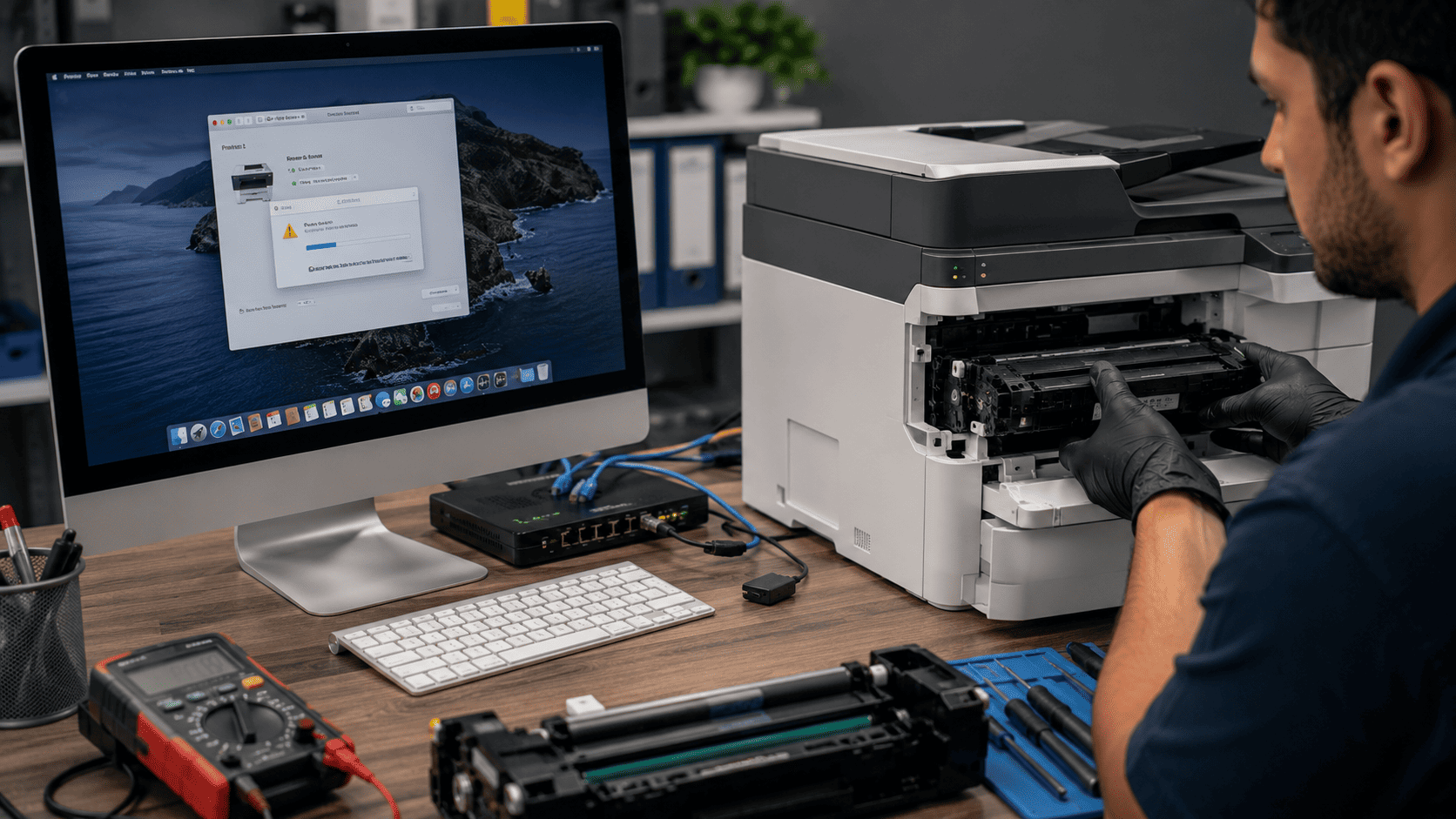
Few printer issues are more frustrating than clicking "Print" and receiving a "Printer Not Responding" error on your Mac. While the problem may appear to be a hardware failure, it is often caused by corrupted print queues, CUPS (Common UNIX Printing System) configuration issues, outdated drivers, macOS updates, or communication problems between the Mac and printer. Understanding how the Mac printing system works and knowing when to reset CUPS or reinstall drivers can often restore printing functionality without replacing hardware.
What problem is the customer facing?
Mac users may experience:
- "Printer Not Responding" errors
- Print jobs stuck in the queue
- Documents never reaching the printer
- Printer showing offline despite being connected
- AirPrint failures
- Slow or incomplete printing
- Printer disappearing from macOS settings
- Frequent connection errors
These issues can prevent normal printing even when the printer appears to be functioning correctly.
Root causes of the problem.
1. Corrupted Print Queue
Stuck print jobs can prevent new documents from printing.
2. CUPS Configuration Problems
The macOS printing subsystem can become corrupted or misconfigured.
3. Outdated Printer Drivers
Older drivers may become incompatible after macOS updates.
4. Network Connectivity Issues
Wi-Fi printers may lose communication with the Mac.
5. AirPrint Conflicts
AirPrint services can occasionally experience discovery or communication problems.
6. Incorrect Printer Settings
Port settings and protocols may become misconfigured.
7. macOS Updates
System updates sometimes affect printer compatibility.
How can customers identify the issue?
Common warning signs include:
- "Printer Not Responding" message
- Jobs remaining in the print queue indefinitely
- Printer status showing Offline
- Failed AirPrint detection
- Print queue freezing
- Delayed printing
- Repeated printer connection failures
- Unable to add the printer back to macOS
Additional Signs
- Printer works from other devices
- Scanner functions but printing fails
- Printer appears connected but remains idle
Possible solutions.
Step 1: Restart Printer and Mac
A simple restart can resolve temporary communication issues.
Step 2: Check Network Connectivity
Verify:
- Printer is connected to Wi-Fi
- Mac and printer are on the same network
- Printer IP address is reachable
Step 3: Clear Stuck Print Jobs
Open:
System Settings → Printers & Scanners
Remove pending jobs and restart printing.
Step 4: Reset the Printing System (CUPS Reset)
On macOS:
- Open Printers & Scanners
- Right-click in the printer list
- Select Reset Printing System
- Confirm the reset
- Re-add the printer
This clears corrupted queues and printer configurations.
Step 5: Reinstall Printer Drivers
Download the latest drivers from the printer manufacturer's website.
Step 6: Try AirPrint or Generic Drivers
If manufacturer drivers fail:
- Use AirPrint
- Use Generic PostScript Driver
- Use Generic PCL Driver
Step 7: Update macOS
Install updates that may contain printer compatibility fixes.
Step 8: Reconfigure the Printer
Remove and re-add the printer using its IP address if necessary.
Common Mistakes to Avoid
Constantly Reinstalling Drivers
The problem may actually be a corrupted print queue.
Ignoring Network Issues
Many "not responding" errors are connectivity-related.
Installing Incorrect Drivers
Always verify printer model compatibility.
Skipping CUPS Reset
A reset often resolves persistent printing problems.
Using Outdated Firmware
Printer firmware updates can improve compatibility.
Diagnostic Process Used by Technicians
A professional diagnosis typically includes:
- Printer communication testing
- Network connectivity verification
- CUPS service inspection
- Driver compatibility checks
- Print queue analysis
- Firmware verification
- macOS configuration review
Why Choose Guru Computer Solution?
1.Certified Technicians
Experienced in Mac, Windows, and network printer troubleshooting.
2.Genuine Driver Support
Proper driver installation and compatibility verification.
3.Fast Turnaround
Quick diagnosis and printer restoration.
4.Warranty Support
Service backed by repair warranty.
5.Affordable Pricing
Cost-effective printer troubleshooting and maintenance solutions.
Conclusion
A "Printer Not Responding" error on Mac does not always indicate a faulty printer. In many cases, the issue is caused by corrupted print queues, CUPS configuration problems, outdated drivers, network communication failures, or macOS compatibility issues. Resetting the printing system, updating drivers, and verifying network settings can often restore normal printing without replacing hardware.
If your Mac printer continues to experience connection problems, offline errors, or failed print jobs, Guru Computer Solution can provide professional diagnostics, driver configuration, network troubleshooting, and printer repair services to restore reliable printing performance.