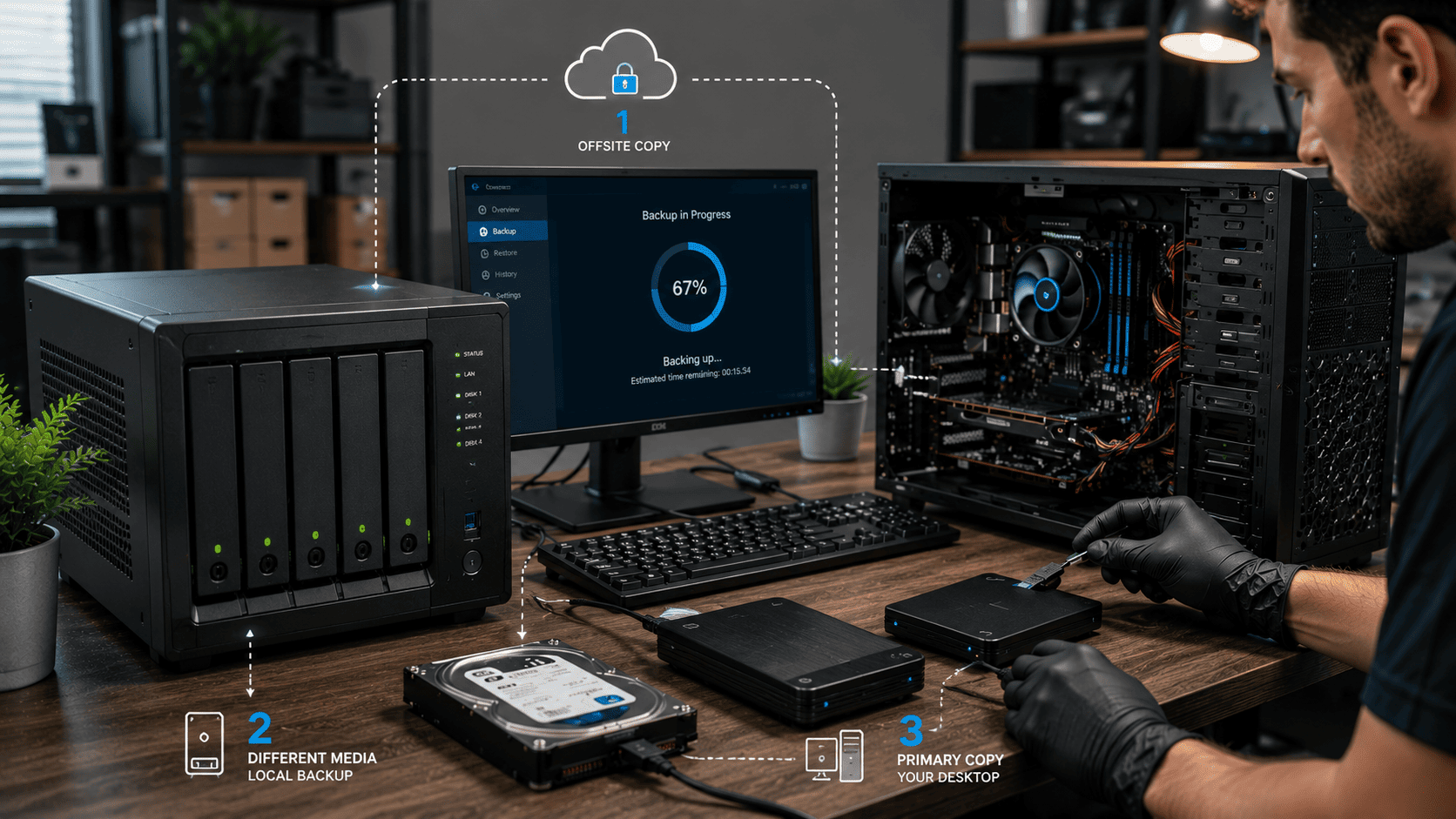
Data loss can happen when you least expect it—hard drive failures, ransomware attacks, accidental file deletion, theft, or even power surges can wipe out years of important files in seconds. Unfortunately, many users don't realize the importance of backups until it's too late. The good news is that protecting your data doesn't have to be complicated. By following the proven 3-2-1 backup strategy and automating the process, you can ensure your files remain safe and recoverable with minimal effort.
What Problem Is the Customer Facing?
Many desktop users:
- Store all files on a single drive
- Forget to perform regular backups
- Lose data after hard drive failure
- Fall victim to ransomware attacks
- Accidentally delete important files
- Have no disaster recovery plan
Without a backup system, a single hardware failure can result in permanent data loss.
What Is the 3-2-1 Backup Rule?
The 3-2-1 backup rule is a widely recommended data protection strategy:
3 Copies of Your Data
Keep:
- 1 Primary copy (your desktop)
- 2 Backup copies
This ensures that if one copy fails, additional copies remain available.
2 Different Storage Types
Store backups on different media such as:
- Internal drive + external drive
- External drive + NAS
- SSD + cloud storage
Using different storage methods reduces the risk of a single point of failure.
1 Copy Offsite
Keep at least one backup outside your home or office:
- Cloud backup
- Remote NAS
- External drive stored elsewhere
This protects against theft, fire, floods, and other disasters.
Why Automated Backups Matter
Manual backups often fail because people forget to perform them regularly.
Automated backups provide:
- Consistent protection
- Reduced human error
- Scheduled file backups
- Faster disaster recovery
- Continuous data protection
Once configured correctly, backups run automatically in the background.
Symptoms of Poor Backup Practices
Common warning signs include:
- No recent backups available
- Files stored on only one drive
- Important documents kept only on the desktop
- No cloud backup account
- Backup drives rarely connected
- No recovery testing performed
If any of these apply, your data may be at risk.
Example of a Simple 3-2-1 Setup
Primary Copy
Your desktop computer.
Local Backup
External USB hard drive automatically backing up daily.
Offsite Backup
Cloud storage syncing important files continuously.
This setup protects against both hardware failures and local disasters.
Step-by-Step Backup Setup
Step 1: Identify Critical Data
Include:
- Documents
- Photos
- Videos
- Business files
- Financial records
- Project data
Step 2: Choose Backup Storage
Select a reliable:
- External HDD
- External SSD
- NAS device
- Cloud backup service
Step 3: Configure Backup Software
Set automatic schedules such as:
- Daily
- Weekly
- Continuous synchronization
Step 4: Enable Version History
Versioning allows recovery of older file versions.
Step 5: Test Recovery
Verify that files can actually be restored when needed.
Common Backup Mistakes
Using Only One Drive
A single drive is not a backup.
Never Testing Restores
Backups are useless if recovery fails.
Keeping All Copies in One Location
Fire, theft, or flooding can destroy all copies simultaneously.
Ignoring Backup Failures
Failed backup jobs should be investigated immediately.
Backing Up Too Infrequently
Important files can change daily.
Diagnostic Process Used by Technicians
A professional backup assessment typically includes:
- Storage health checks
- Existing backup review
- Backup schedule verification
- Recovery testing
- Cloud synchronization checks
- Storage capacity planning
- Disaster recovery recommendations
Possible Solutions
Automated Local Backup
Schedule regular backups to an external drive.
Cloud Backup Integration
Protect files against local disasters.
NAS Deployment
Create centralized backup storage for multiple devices.
Backup Monitoring
Ensure backup jobs complete successfully.
Recovery Planning
Prepare procedures for rapid data restoration.
Why Choose Guru Computer Solution?
✓ Certified Technicians
Experienced in backup planning and data protection.
✓ Automated Backup Setup
Reliable backup systems configured correctly.
✓ Data Recovery Expertise
Helping protect important files before disasters occur.
✓ Ongoing Support
Assistance with backup monitoring and maintenance.
✓ Affordable Solutions
Practical backup strategies for home and business users.
Conclusion
A reliable backup system is one of the most important investments you can make for your desktop computer. The 3-2-1 backup rule provides a simple yet highly effective framework for protecting valuable data from hardware failures, accidental deletion, malware, and unexpected disasters. By automating your backups, you remove the risk of forgetting and ensure your files remain protected at all times.
If you need help setting up automated backups, cloud storage, NAS solutions, or a complete data protection strategy, Guru Computer Solution can design and implement a backup system that keeps your important files safe and easily recoverable.