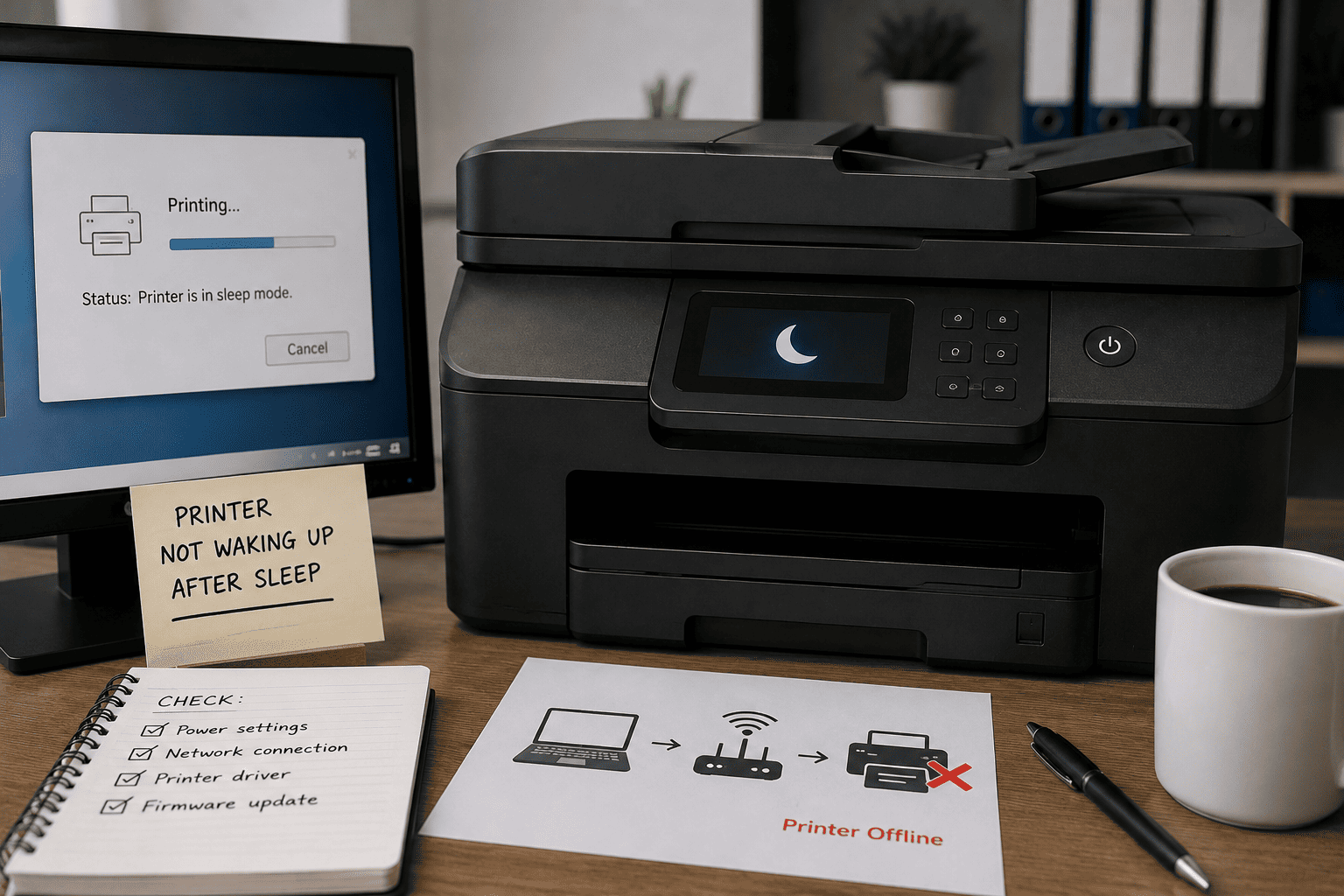
A printer that goes into sleep mode and never wakes up can be frustrating, especially in an office where the printer needs to remain available throughout the day. Sleep mode is designed to reduce power consumption, but a printer should normally wake when a print job is sent, a button is pressed, or the device receives appropriate network activity.
If the printer remains unresponsive after entering sleep mode, the problem may involve power management settings, firmware, network communication, USB connectivity, driver configuration, or a hardware fault.
Problem
The customer has a printer that works normally after being powered on but eventually enters sleep mode and does not wake when a print job is sent.
The printer may appear connected but fail to respond until it is manually restarted.
What Problem Is the Customer Facing?
Customers may experience:
- Printer goes to sleep and never wakes up
- Printer does not respond to print jobs
- Computer shows the printer as offline
- Printer wakes only after pressing the power button
- Network printer becomes unavailable after inactivity
- USB printer stops responding after sleep
- Printer requires a restart before printing
- Print jobs remain stuck in the queue
- Printer display stays dark or unresponsive
- Printer disconnects from Wi-Fi after sleep
- Printer works immediately after reboot
- Problem happens repeatedly after long periods of inactivity
- Multiple office computers cannot wake the printer
Root Causes of the Problem
1. Aggressive Sleep or Power-Saving Settings
The printer may have a sleep or deep-sleep mode configured too aggressively.
Some models use different levels of power saving that can affect how quickly the printer responds to network or USB activity.
2. Network Connection Drops During Sleep
A network printer may lose its network connection when entering a low-power state.
If the network interface does not reconnect correctly, the printer can appear offline even though it is physically powered.
3. Wi-Fi Power Management Problem
Wireless printers can experience connectivity issues after sleep if the Wi-Fi connection is not restored correctly.
Signal quality, router settings, and printer firmware can all contribute.
4. Outdated Printer Firmware
Firmware controls many printer functions, including power management and network communication.
An outdated firmware version may contain bugs that affect sleep and wake behavior.
5. Printer Driver or Queue Problem
A computer may send the print job correctly, but the driver or print spooler can fail to communicate with a printer that has entered a deep sleep state.
6. USB Power Management
For USB-connected printers, the computer's power management settings can sometimes suspend the USB device or connection.
This can make the printer appear unavailable after a period of inactivity.
7. Network Discovery Problem
A printer may wake correctly but remain inaccessible because the computer cannot rediscover it on the network.
This can happen with changing IP addresses or network configuration problems.
8. IP Address Changes
If the printer receives its address through DHCP and the address changes, computers may continue trying to reach the old address.
This can make the printer appear offline after waking.
9. Faulty Power Supply
A failing power supply or internal power circuit may prevent the printer from transitioning correctly between sleep and active states.
10. Mainboard or Control Board Problem
If the printer remains completely unresponsive even after network, driver, and power settings have been checked, the control electronics may require diagnosis.
How Can Customers Identify the Issue?
Look for:
- Printer works normally after a restart
- Printer stops responding after being idle
- Print jobs remain pending while the printer is asleep
- Printer display does not respond to normal wake commands
- Computer shows “Offline”
- Printer becomes available after pressing a button
- Printer becomes available only after power cycling
- Network connection disappears after sleep
- Problem happens at approximately the same time after inactivity
- Printer works correctly when sleep mode is disabled
- USB printing stops after the computer enters power-saving mode
- Multiple users experience the same problem
Possible Solutions
1. Check Sleep Mode Settings
Open the printer's control panel or web management interface.
Check settings related to:
- Sleep mode
- Deep sleep
- Auto power-off
- Power-saving mode
- Energy-saving timer
- Wake-up settings
If the printer allows it, increase the sleep timer temporarily and test whether the problem disappears.
2. Test the Printer Immediately After Sleep
Allow the printer to enter sleep mode naturally.
Then try:
- Pressing a control-panel button
- Sending a small print job
- Sending a network print job
- Sending a USB print job
Observe whether the printer wakes.
This helps determine whether the problem affects the printer itself or only the computer connection.
3. Check the Network Connection
For network printers, verify:
- Ethernet cable
- Wi-Fi connection
- IP address
- Network status
- Default gateway
- DNS settings
Make sure the printer remains connected after entering and leaving sleep mode.
4. Check the Printer's IP Address
Print a network configuration page or check the printer's network settings.
Compare its current IP address with the address configured on the computers.
If the IP address changes regularly, a suitable network configuration such as a DHCP reservation may help maintain consistent connectivity.
5. Test With a Wired Connection
If the printer uses Wi-Fi and repeatedly fails to wake, test it through Ethernet when supported.
If the problem disappears over Ethernet, the wireless connection or wireless power-management behavior may require further investigation.
6. Check the Computer's Printer Status
On the computer, verify whether the printer appears:
- Online
- Offline
- Paused
- Unavailable
- Disconnected
If the printer is incorrectly marked offline, check the connection and printer configuration before reinstalling hardware.
7. Clear Stuck Print Jobs
A print queue containing a failed job can make troubleshooting more difficult.
Cancel pending jobs and send a simple test page after the printer wakes.
8. Check USB Power Management
For USB printers, inspect the computer's power-management settings.
If the USB connection is being suspended during system sleep or power-saving states, adjust the appropriate settings and test again.
9. Update the Printer Driver
Install the correct driver for the exact printer model and operating system.
A manufacturer-supported driver can provide better compatibility than an incorrect or generic driver.
10. Update Printer Firmware When Appropriate
Check whether the printer manufacturer provides firmware updates addressing:
- Sleep mode
- Wake behavior
- Network stability
- Power management
- Connectivity
- General reliability
Use firmware intended for the exact printer model and follow the manufacturer's update procedure.
11. Check Auto Power-Off Settings
Some printers have both sleep and automatic power-off settings.
If the printer completely powers down after a period of inactivity, it may require a different wake procedure than normal sleep mode.
Check whether automatic shutdown is enabled.
12. Test From Multiple Devices
If the printer is used by several employees, test it from multiple computers or mobile devices.
If every device loses access after the printer sleeps, the printer or network configuration is more likely to be responsible.
If only one computer experiences the problem, investigate that computer's driver, queue, or network settings.
13. Restart the Printer and Network Equipment
If the printer becomes permanently unresponsive, perform the manufacturer's recommended restart procedure.
For network-related problems, a technician may also check the router, switch, or access point.
Avoid repeatedly power-cycling the printer as a substitute for diagnosing an underlying hardware or firmware problem.
14. Check the Power Supply
If the printer fails to wake even from its control panel, a technician can inspect the power system.
Possible areas include:
- Power cable
- Power adapter
- Internal power supply
- Power connectors
- Mainboard power circuits
Electrical testing should be performed by a qualified technician.
15. Inspect the Main Control Board
If the printer still fails to wake after software, network, and power-management troubleshooting, the mainboard or related control circuitry may require diagnosis.
A technician can check for:
- Firmware-related faults
- Damaged components
- Power-regulation problems
- Network-controller faults
- Board-level failures
16. Test the Printer After Repair
After troubleshooting:
- Allow the printer to enter sleep mode
- Send a print job
- Wake it from the control panel
- Test network printing
- Test USB printing if applicable
- Leave the printer idle again
- Repeat the wake test
The printer should reliably return to an operational state without requiring a manual restart.
Why Choose Guru Computer Solution?
1. Experienced Printer Technicians
Our technicians can diagnose sleep-mode, network, driver, firmware, and power-related printer problems systematically.
2. Network Printer Troubleshooting
We can investigate printers that disconnect from Wi-Fi, Ethernet, or office networks after entering sleep mode.
3. Firmware and Driver Support
We can help identify appropriate printer drivers and manufacturer-supported firmware updates when required.
4. Power Management Diagnosis
We can check sleep, deep-sleep, auto power-off, and wake-up settings to identify configuration problems.
5. Hardware Inspection
If the printer remains unresponsive after software and network troubleshooting, we can inspect the power supply and control electronics.
6. Affordable Repair
We diagnose the actual cause of the sleep and wake problem before recommending unnecessary component replacement or a new printer.