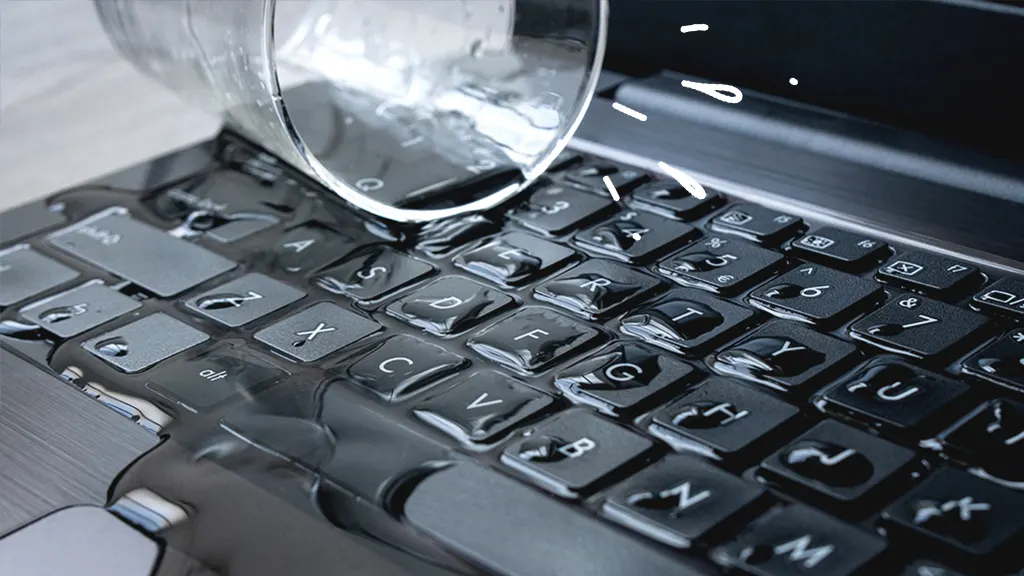
Spilling water, coffee, tea, juice, or any other liquid on your laptop can happen when you least expect it. Whether you're working, studying, or relaxing at home, a single spill can quickly turn into a serious problem.
Many people panic and try to turn the laptop back on to see if it still works. Unfortunately, this is one of the biggest mistakes you can make. Even if your laptop appears to be working normally after a spill, moisture inside the device can continue damaging important components over time.
Taking the right steps immediately can reduce the risk of permanent damage, protect your valuable data, and increase the chances of a successful repair.
we'll explain the common causes of water damage, warning signs to watch for, the immediate actions you should take, and why professional repair is the safest solution.
What Problem Is the Customer Facing?
A liquid spill can affect almost every part of a laptop. Some problems appear immediately, while others may take hours or even days to become noticeable.
Common issues include:
- The laptop won't turn on.
- The keyboard stops working.
- The screen becomes black or flickers.
- The touchpad does not respond.
- USB ports stop working.
- The laptop shuts down unexpectedly.
- The battery no longer charges properly.
- The laptop becomes unusually hot.
- Strange noises or burning smells come from the device.
Even if the laptop seems to work after drying, hidden moisture can continue damaging internal components.
Why Does It Happen?
Root Causes of the Problem
Liquids can easily enter through the keyboard, ventilation openings, charging ports, USB ports, or other connectors. Once inside, they can damage sensitive electronic components.
1. Short Circuit
When liquid reaches powered electronic components, it creates unwanted electrical connections that can instantly damage the motherboard or other circuits.
2. Corrosion
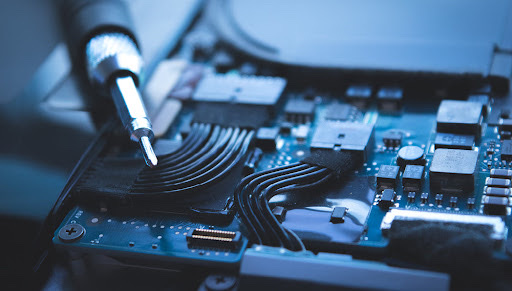
Water and moisture can cause corrosion on the motherboard and connectors. Corrosion often continues spreading even after the laptop appears dry.
3. Keyboard Damage
Liquid can damage the keyboard membrane and electronic circuits, causing keys to stop responding or type incorrectly.
4. Battery and Charging Problems
Water exposure may damage the battery, charging port, or charging circuit, preventing the laptop from charging properly.
5. Motherboard Failure
The motherboard is the heart of the laptop. If liquid reaches this component, repairs can become more complicated and expensive.
6. Hard Drive or SSD Damage
Although SSDs are more resistant than traditional hard drives, severe liquid exposure can still affect data storage and lead to data loss.
Symptoms
How Can You Identify the Issue?
Your laptop may have water damage if you notice any of the following signs:
- The laptop does not power on.
- keyboard becomes sticky or stops responding.
- The display flickers or remains black.
- The touchpad works inconsistently.
- USB ports or external devices are not detected.
- The cooling fan runs continuously.
- The laptop overheats without heavy use.
- Charging becomes unreliable.
- There is a burning smell or unusual sounds.
- The laptop randomly restarts or shuts down.
If you experience any of these symptoms after a liquid spill, stop using the laptop immediately.
Solutions
What Should You Do Immediately?
Taking quick action can make a significant difference.
Step 1: Turn Off the Laptop: Power off the laptop immediately. Keeping it powered on increases the risk of short circuits.
Step 2: Disconnect the Charger: Unplug the power adapter and remove any connected accessories such as USB drives, external keyboards, or mice.
Step 3: Remove the Battery (If Possible): If your laptop has a removable battery, remove it carefully to stop power from flowing through the device.
Step 4: Drain the Liquid: Place the laptop upside down in an inverted "V" shape to allow excess liquid to drain naturally.
Step 5: Wipe the Exterior
Use a soft, lint-free cloth to gently remove visible moisture.
Step 6: Do Not Use Heat: Avoid using a hair dryer, microwave, heater, or direct sunlight. Excessive heat can damage delicate electronic components.
Step 7: Do Not Turn It Back On: Many users make the mistake of testing the laptop too soon. Wait until it has been professionally inspected and cleaned.
Step 8: Visit a Professional Repair Center: Professional cleaning and diagnostics can prevent corrosion and identify hidden damage before it becomes permanent.
Why Choose Guru Computer Solution?
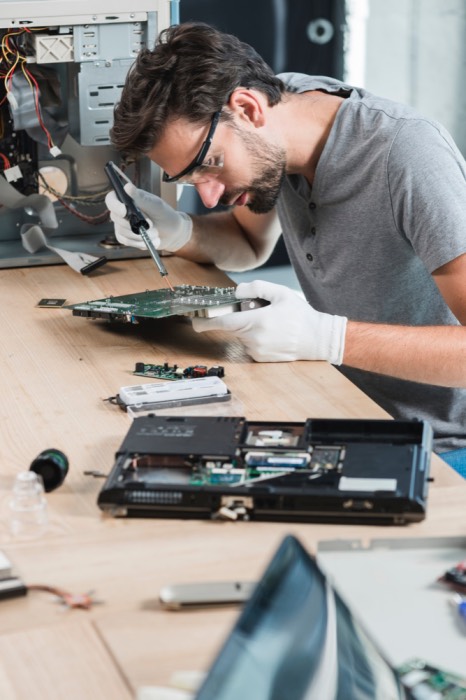
Guru Computer Solution, we understand how valuable your laptop and data are. Our experienced technicians provide professional water damage diagnostics and repair services using advanced tools and safe cleaning methods.
Our services include:
- Water damage inspection
- Motherboard cleaning
- Component-level repair
- Keyboard replacement
- Charging port repair
- SSD and hard drive diagnostics
- Data recovery services
- Complete laptop maintenance
- Professional hardware diagnostics
We carefully inspect every affected component to ensure your laptop is repaired safely and performs reliably.
Conclusion
A water-damaged laptop should never be ignored. Even a small amount of liquid can cause hidden internal damage that becomes worse over time.
The most important thing you can do is act quickly. Turn off the laptop immediately, disconnect the power, avoid turning it back on, and seek professional repair as soon as possible.
Quick action can save your laptop, protect your important files, and reduce repair costs.
If your laptop has been exposed to water or any other liquid, Guru Computer Solution is here to help. Our skilled technicians provide fast, reliable, and professional water damage repair services to get your laptop back in working condition.
Visit Us: New Baneshwor, Kathmandu, Nepal
Call Us: +977-9841976380
Email: info@gurucomputer.com.np
Website: https://gurucomputer.com.np