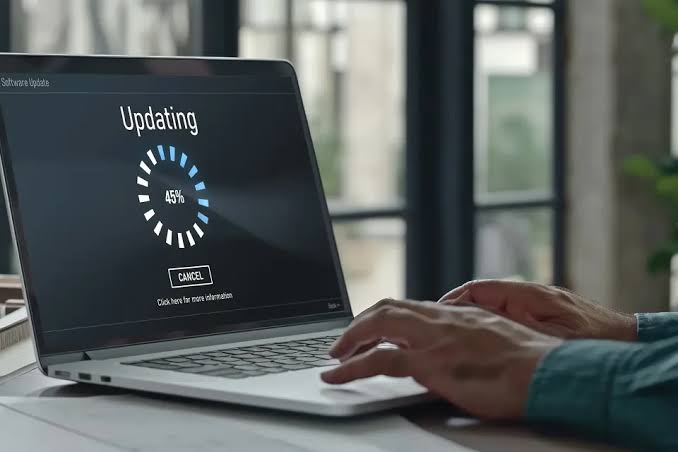
Windows updates are designed to improve your laptop by enhancing security, fixing software bugs, and introducing new features. However, many users experience an unexpected problem after installing an update—their laptop becomes noticeably slower. Applications may take longer to launch, the system may freeze, or the startup process may become frustratingly slow.
The good news is that this issue is usually temporary or can be resolved with the right troubleshooting steps. Understanding the reasons behind a slow laptop after a Windows update can help you restore its performance and prevent future problems.
What Problem Is the Customer Facing?
Many laptop users notice a significant drop in performance immediately after installing a Windows update. This can affect productivity, online learning, entertainment, and everyday computing tasks.
Common Problems Include:
- Slow startup and shutdown times
- Applications taking longer to open
- Frequent system freezing or lagging
- High CPU, RAM, or disk usage
- Slow web browsing and file loading
- Delayed response when switching between programs
- Faster battery drain than before
These issues can make even simple tasks feel frustrating and time-consuming.
Why Does It Happen?
Root Causes of the Problem
There are several reasons why your laptop may become slower after a Windows update.
1. Background Update Processes: Even after the installation is complete, Windows continues performing background tasks such as optimizing system files, indexing data, downloading additional updates, and configuring new features. These processes temporarily consume system resources.
2. Outdated or Incompatible Drivers: A Windows update may replace or conflict with existing hardware drivers. Outdated or incompatible drivers can reduce performance and cause system instability.
3. Insufficient Storage Space: Windows updates require free disk space to install and operate efficiently. If your storage drive is nearly full, the operating system may slow down while managing temporary files and virtual memory.
4. Too Many Startup Programs: Some applications automatically launch during startup. After an update, additional services or software may be enabled, increasing boot time and slowing overall system performance.
5. Software Compatibility Issues: Older applications may not be fully compatible with the latest Windows version, causing crashes, slow loading times, or excessive resource usage.
6. Background Applications: Programs running in the background continue using CPU, RAM, and storage resources, making the laptop feel sluggish after an update.
7. Hardware Limitations: Older laptops equipped with traditional HDDs, limited RAM, or aging processors may struggle to handle the latest Windows updates efficiently.
How Can You Identify the Problem?
Your laptop may be experiencing performance issues if you notice any of the following:
- Windows takes much longer to boot.
- Programs respond slowly or freeze.
- High CPU, RAM, or disk usage appears in Task Manager.
- The cooling fan runs continuously.
- File Explorer opens slowly.
- Updates seem to take a long time to complete.
- The system becomes slow after every restart.
If these symptoms continue for several days after the update, professional diagnosis may be required.
How Can You Improve Laptop Performance?
You can often restore your laptop's speed by following these simple steps:
- Restart your laptop after the update has finished installing.
- Allow Windows enough time to complete background optimization.
- Install the latest drivers for your laptop and hardware devices.
- Delete temporary and unnecessary files to free up storage space.
- Disable unnecessary startup applications.
- Keep Windows and installed software fully updated.
- Scan your laptop for viruses and malware.
- Upgrade your laptop with an SSD or additional RAM for better performance.
- Seek professional diagnostics if the slowdown continues.
Why Choose Guru Computer Solution?
Guru Computer Solution, we specialize in diagnosing and fixing laptop performance issues caused by Windows updates and other software or hardware problems.
Our Professional Services Include:
- Windows troubleshooting and optimization
- Driver installation and compatibility fixes
- SSD upgrades for faster performance
- RAM upgrades to improve multitasking
- Virus and malware removal
- Laptop speed optimization
- Internal cleaning and thermal maintenance
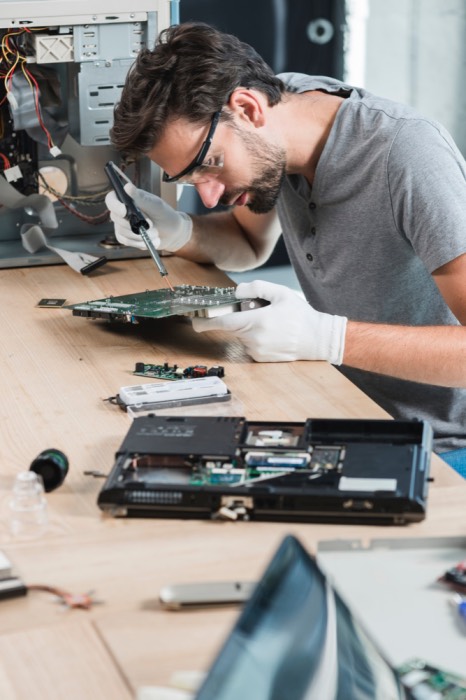
- Hardware diagnostics and repair
- Data backup and recovery
Our experienced technicians identify the root cause of your laptop's slowdown and provide reliable, long-lasting solutions to restore its original performance.
Conclusion
A slow laptop after a Windows update doesn't always indicate a serious hardware problem. In most cases, the slowdown is caused by background processes, outdated drivers, limited storage space, software compatibility issues, or aging hardware.
By understanding the cause and applying the right solutions, you can significantly improve your laptop's speed and enjoy a smoother Windows experience.
If your laptop remains slow even after trying these solutions, don't let the problem affect your productivity. VisitGuru Computer Solution for professional laptop diagnostics, performance optimization, hardware upgrades, and expert repair services. Our skilled technicians are committed to getting your laptop running like new so you can work, study, and browse without interruptions.