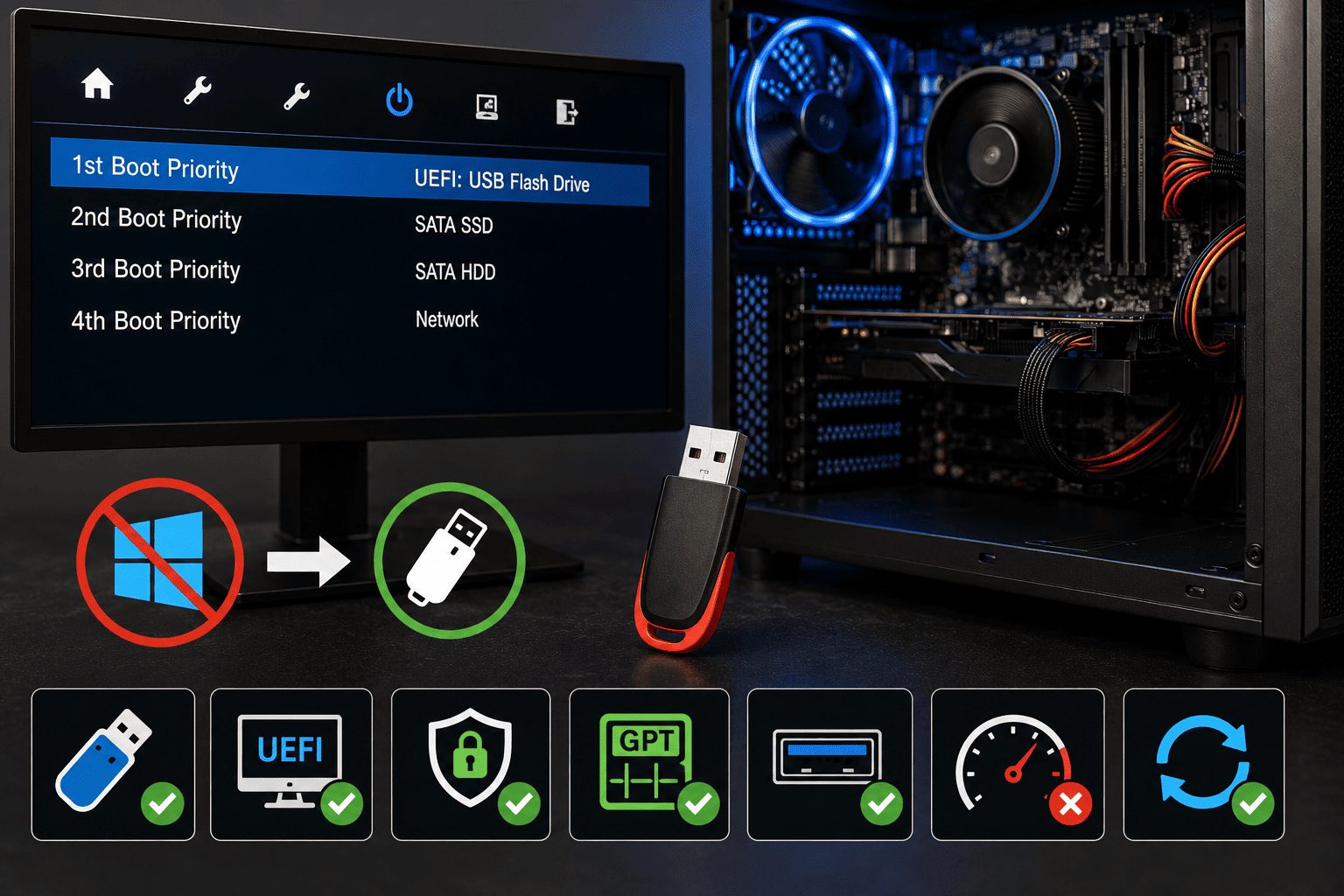
You have created a bootable USB drive, selected it in BIOS, and still the desktop refuses to boot from it. This is a common problem when installing Windows, running diagnostics, or using a recovery environment.
The issue may not be the boot order itself. UEFI/Legacy mode, Secure Boot, the USB's partition format, a damaged bootable image, or the USB port can all prevent successful USB booting.
Problem
The desktop detects the USB drive in BIOS, but after restarting it:
- Boots into Windows normally
- Shows a "No bootable device" message
- Returns to BIOS
- Displays a black screen
- Shows the USB but refuses to start it
This can happen even when the USB device is clearly listed as the first boot option.
What Problem Is the Customer Facing?
Customers commonly experience:
- USB appears in BIOS but won't boot
- PC skips the USB and starts Windows
- "No bootable device" error
- USB boot option disappears after restart
- Boot menu shows the USB but selecting it does nothing
- Windows installation USB won't start
- Recovery USB fails to load
- USB works on another PC but not the customer's desktop
Root Causes of the Problem
1. USB Is Not Actually Bootable
Simply copying Windows or ISO files onto a USB drive does not necessarily make it bootable. The drive needs the correct boot structure.
2. UEFI and Legacy Mode Mismatch
The USB may have been created for one boot mode while the motherboard is configured for another.
For modern systems, UEFI boot is generally preferred.
3. Secure Boot Conflict
Some bootable tools or older operating-system installers may not work correctly with the system's current Secure Boot configuration.
4. Incorrect Boot Entry
The BIOS may show both the physical USB device and a UEFI boot entry. Selecting the appropriate UEFI entry can matter.
5. Incorrect Partition Scheme
The USB's partition structure may not match the firmware configuration.
For example, a UEFI installation commonly uses a GPT-based setup, while older Legacy BIOS configurations often use MBR.
6. Damaged ISO or USB Drive
A corrupted ISO image, incomplete USB creation process, or failing flash drive can result in a USB that appears in BIOS but cannot boot.
7. USB Port Compatibility
Some systems may behave differently depending on the USB port used, particularly during early boot.
8. Fast Boot Settings
Firmware Fast Boot can sometimes reduce USB initialization during startup and prevent a USB device from being detected properly.
9. BIOS Configuration
Settings related to:
- UEFI/Legacy mode
- Secure Boot
- Fast Boot
- USB boot support
- Boot priority
can affect USB booting.
How Can Customers Identify the Issue?
Look for:
- USB detected in BIOS but ignored during startup
- Windows starts instead of the USB installer
- "No bootable device" message
- USB boot option disappears
- Black screen after selecting USB
- Installation USB works on another computer
- Boot menu does not show the USB
- System returns directly to BIOS
- USB installation starts but freezes
Possible Solutions
1. Confirm the USB Is Actually Bootable
Recreate the USB using a reliable bootable-media creation tool and a verified operating-system ISO.
Don't simply drag the ISO file onto the flash drive.
2. Use the One-Time Boot Menu
Instead of changing the permanent boot order, use the motherboard's one-time boot menu.
Look for an entry similar to:
UEFI: USB Drive
Selecting the UEFI USB entry can help avoid boot-mode confusion.
3. Check UEFI Mode
Enter BIOS/UEFI and check whether the system is configured for UEFI boot.
For modern Windows installations, UEFI is generally the preferred configuration.
4. Check Secure Boot
If the USB was created using a legitimate, Secure-Boot-compatible installer, Secure Boot can usually remain enabled.
If you're using a specialized recovery or diagnostic environment, check whether it supports Secure Boot before changing this setting.
Do not disable security features unnecessarily.
5. Recreate the USB With the Correct Partition Scheme
When creating installation media, select settings appropriate for the target system's firmware.
For a modern UEFI system, this commonly means:
- GPT partition scheme
- UEFI boot
- Correct filesystem supported by the firmware and installer
6. Try Another USB Port
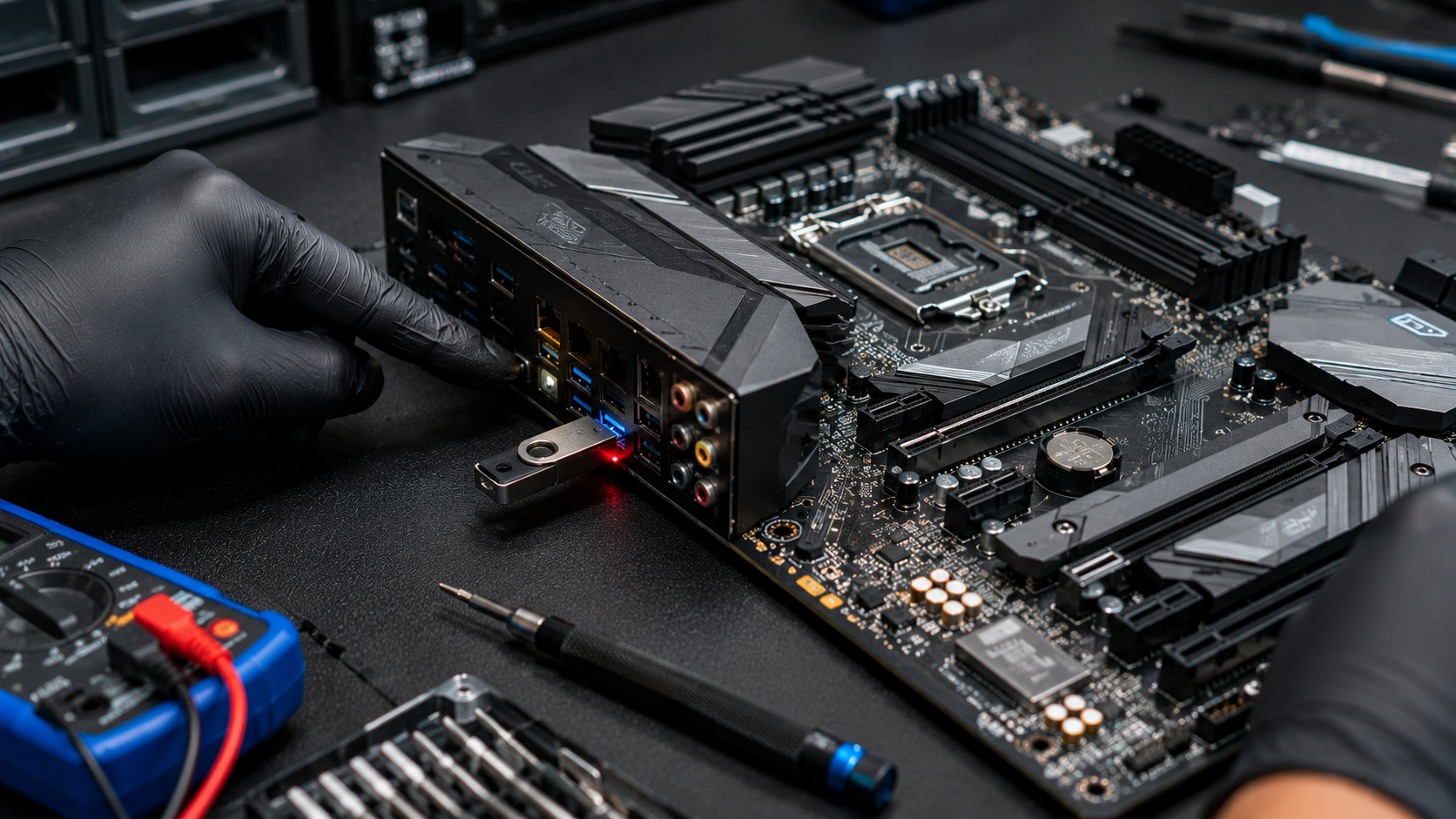
Connect the bootable USB directly to a motherboard USB port.
If possible, try another port—particularly if the current port is connected through a front-panel hub or extension.
7. Disable Fast Boot Temporarily
If the USB isn't being initialized during startup, temporarily disabling Fast Boot in BIOS/UEFI may allow the firmware more time to detect it.
8. Verify the USB on Another PC
If possible, test the same bootable USB on another compatible computer.
If it fails there too, the problem is more likely related to:
- USB creation
- ISO image
- Flash drive
- Boot configuration
If it works elsewhere, focus on the desktop's BIOS/UEFI configuration and hardware.
9. Check the USB Drive's Health
A failing flash drive may still appear in BIOS but fail when the system attempts to read boot files.
If the drive behaves inconsistently, recreate the installer using another reliable USB drive.
10. Reset BIOS Settings if Necessary
If the boot configuration has become confusing or inconsistent, restoring BIOS defaults can help.
Afterward, configure only the necessary UEFI and boot settings and test the USB again.