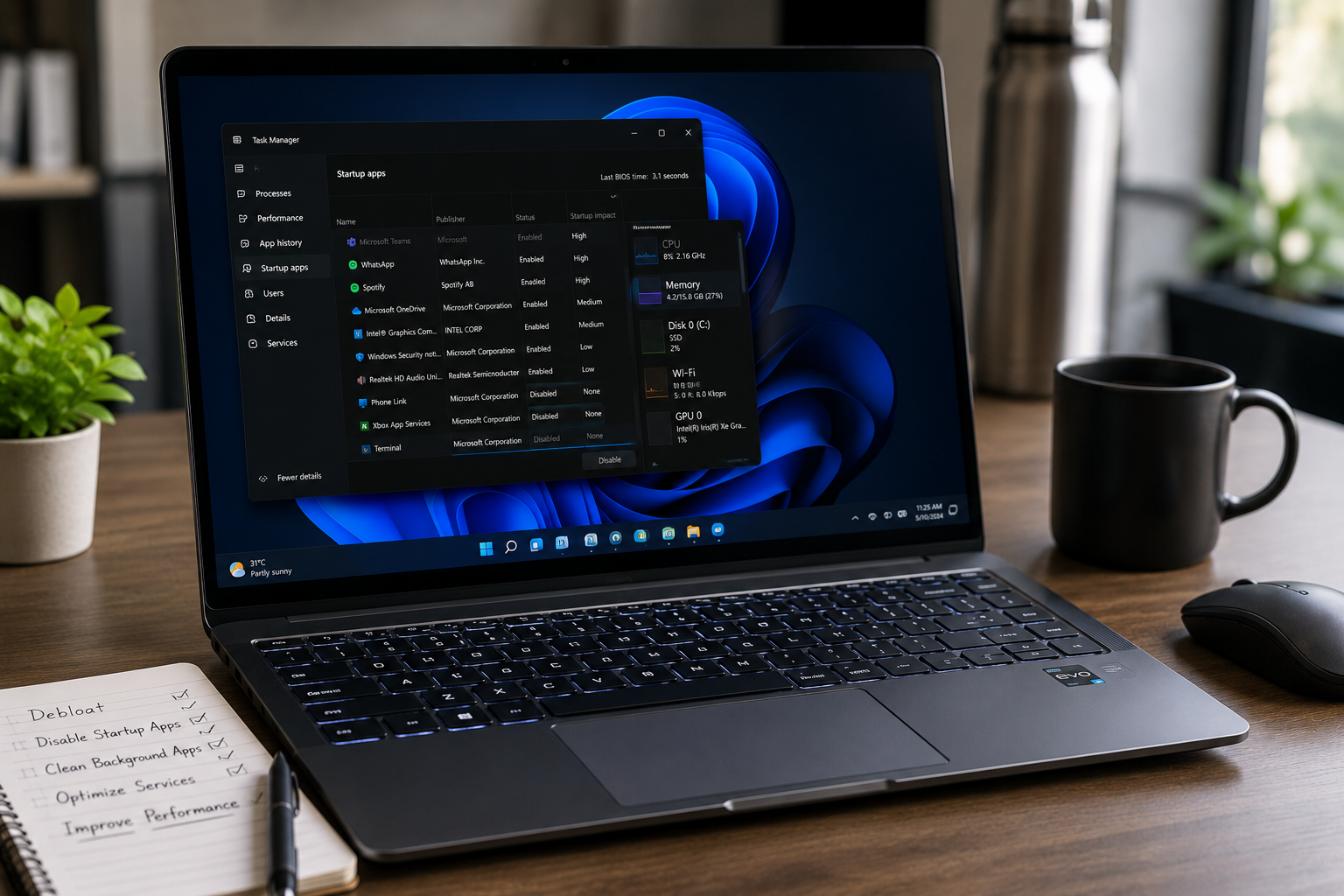
Windows 11 offers a modern interface, enhanced security, and improved productivity features, but over time many users notice their laptops becoming slower than when they were new. Longer boot times, sluggish application launches, increased memory usage, and reduced battery life are often caused not by aging hardware, but by unnecessary background processes, startup applications, pre-installed software, and system services consuming valuable resources.
A proper Windows 11 cleanup can significantly improve performance by removing bloatware, optimizing startup programs, and reducing unnecessary background activity. In this article, we'll explore why Windows 11 laptops slow down, how to identify resource-hungry processes, and the safest ways to improve system responsiveness without compromising stability.
Why Is My Windows 11 Laptop Running Slow?
Many users assume a slow laptop automatically needs more RAM or a new SSD. However, performance issues are often caused by software-related factors that gradually accumulate after months or years of use.
Common symptoms include:
- Slow startup times
- Delayed application launches
- High RAM usage when idle
- Constant disk activity
- Lag during multitasking
- Reduced battery life
- System freezes and stuttering
- Slow web browsing performance
Why Does It Happen?
1. Pre-Installed Bloatware
Many laptops come with manufacturer utilities, trial software, and promotional applications that run in the background even when unused.
2. Too Many Startup Programs
Applications that automatically launch during startup increase boot times and consume memory immediately after login.
3. Background Applications
Messaging apps, cloud synchronization tools, update services, and various utilities continuously use CPU, RAM, and network resources.
4. Excessive Windows Services
Some services may be unnecessary for certain users and continue running despite rarely being used.
5. Software Accumulation
Years of software installations often leave behind scheduled tasks, startup entries, and residual processes.
6. Resource-Heavy Security Software
Certain third-party antivirus programs consume significant system resources during scans and monitoring.
7. Limited Storage Space
A nearly full SSD can negatively impact performance and reduce available space for temporary files and system operations.
Symptoms: How Can Customers Identify the Issue?
Signs that software optimization may be needed include:
- Laptop takes several minutes to become usable after startup
- Fans run constantly during light workloads
- Memory usage remains high at idle
- Task Manager shows dozens of background processes
- Battery drains faster than expected
- Frequent application lag
- High CPU usage without active workloads
- Slow file explorer performance
Understanding Windows 11 Debloating
Debloating refers to removing unnecessary applications, startup items, and background processes that consume system resources.
Effective optimization typically focuses on:
- Removing unused software
- Reducing startup applications
- Managing background apps
- Cleaning temporary files
- Optimizing system services
- Updating drivers and Windows components
The goal is improving performance without disabling essential Windows functionality.
Common Cleanup Areas
Startup Applications
Review programs that launch automatically:
- Chat applications
- Game launchers
- Cloud storage clients
- Manufacturer utilities
- Update assistants
Background Apps
Many applications continue running after being closed, consuming memory and processor resources.
Temporary Files
Windows accumulates:
- Update files
- Cache data
- Installation leftovers
- Log files
These can occupy significant storage space over time.
Unused Software
Removing unused programs reduces background activity and frees storage space.
Browser Extensions
Excessive browser extensions can affect both browser speed and overall system performance.
Solutions
Review Startup Programs
Disable unnecessary startup applications through Task Manager to improve boot performance.
Remove Unused Software
Uninstall applications that are rarely used or no longer needed.
Manage Background Apps
Restrict applications from running unnecessarily in the background.
Clean Temporary Files
Use Windows Storage settings to remove:
- Temporary files
- Update leftovers
- Cache files
Update Drivers and Windows
Performance improvements and bug fixes are often included in updates.
Upgrade Hardware When Necessary
If optimization isn't enough, consider:
- SSD upgrades
- RAM upgrades
- Battery replacement (if power management is affected)
Professional Optimization Service
Advanced diagnostics can identify hidden performance bottlenecks, excessive resource usage, and software conflicts.
Why Choose Guru Computer Solution?
Certified Technicians
Experienced professionals skilled in Windows optimization and laptop diagnostics.
Genuine Upgrade Components
Quality SSD and RAM upgrades when hardware improvements are needed.
Fast Turnaround
Efficient performance tuning and troubleshooting services.
Warranty Support
Service backed by professional support.
Affordable Pricing
Cost-effective optimization solutions before recommending hardware replacement.
Contact Guru Computer Solution Today
If your Windows 11 laptop is running slow, freezing, or struggling with everyday tasks, visit Guru Computer Solution for professional diagnostics, system optimization, SSD and RAM upgrades, and fast, reliable service in Kathmandu.